
TripopTripop
User Guide · Master in 5 minutes

Travel smarter with Tripop

Drop in a PDF, photo, or natural-language prompt — AI builds the trip. Once synced, every detail works offline on planes and abroad. Walked through with a real Hawaii 4-night honeymoon sample.

Sample trip: Hawaii Oahu 4 nights · 5 days honeymoon (Honolulu · Waikiki · Diamond Head)

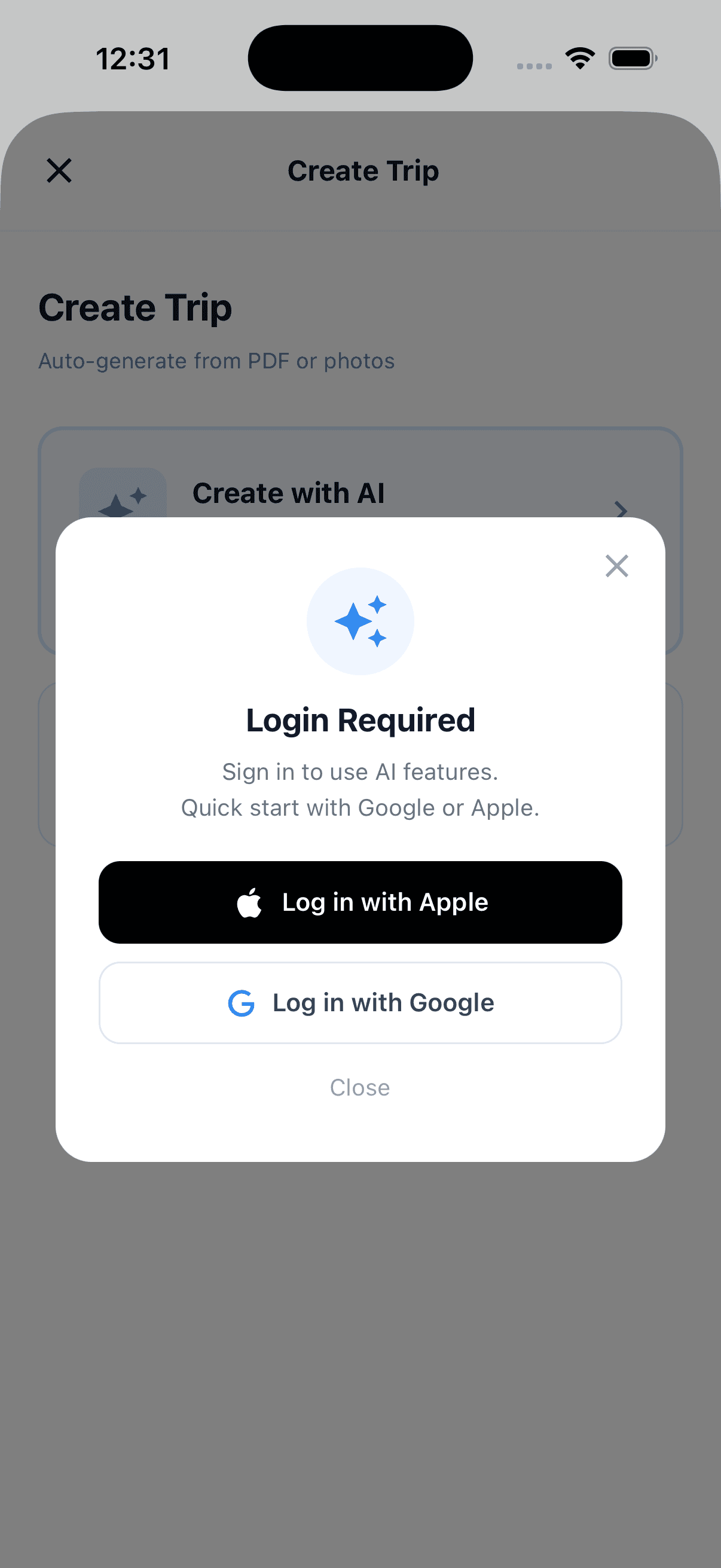
Step 1 · Sign in

Sign in with Google or Apple in 30 seconds

No separate sign-up form. Use your Google or Apple account and free AI points are credited the moment you join.

All core features (creating, editing, syncing, sharing trips) are free. AI features use points, and we give you free points when you sign up.

You can use Tripop without an account by entering trips manually, but AI auto-generation, sync, and inviting companions all require sign-in.

  • One-tap Google sign-in
  • One-tap Apple sign-in (recommended on iOS)
  • Free AI points credited at sign-up
💡 Tip:Tip: Account deletion is a soft-delete; rejoining starts a brand-new account, not a restore.
Tripop login modal — Apple and Google sign-in
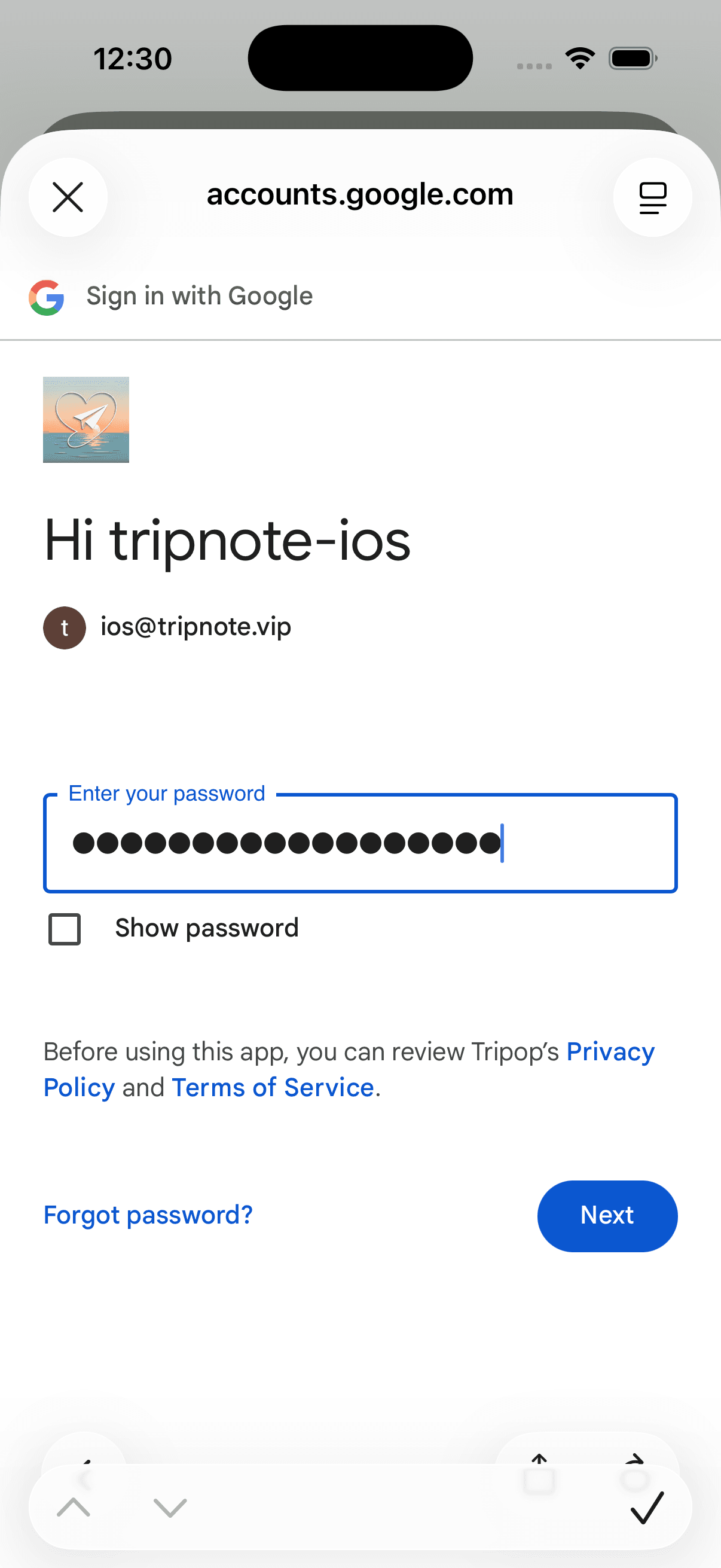
Google account sign-in
Step 2 · Create a trip

Let AI build it, or enter manually

Two ways to start a trip: AI auto-generation, or hand-typing the schedule yourself. Mix and match freely.

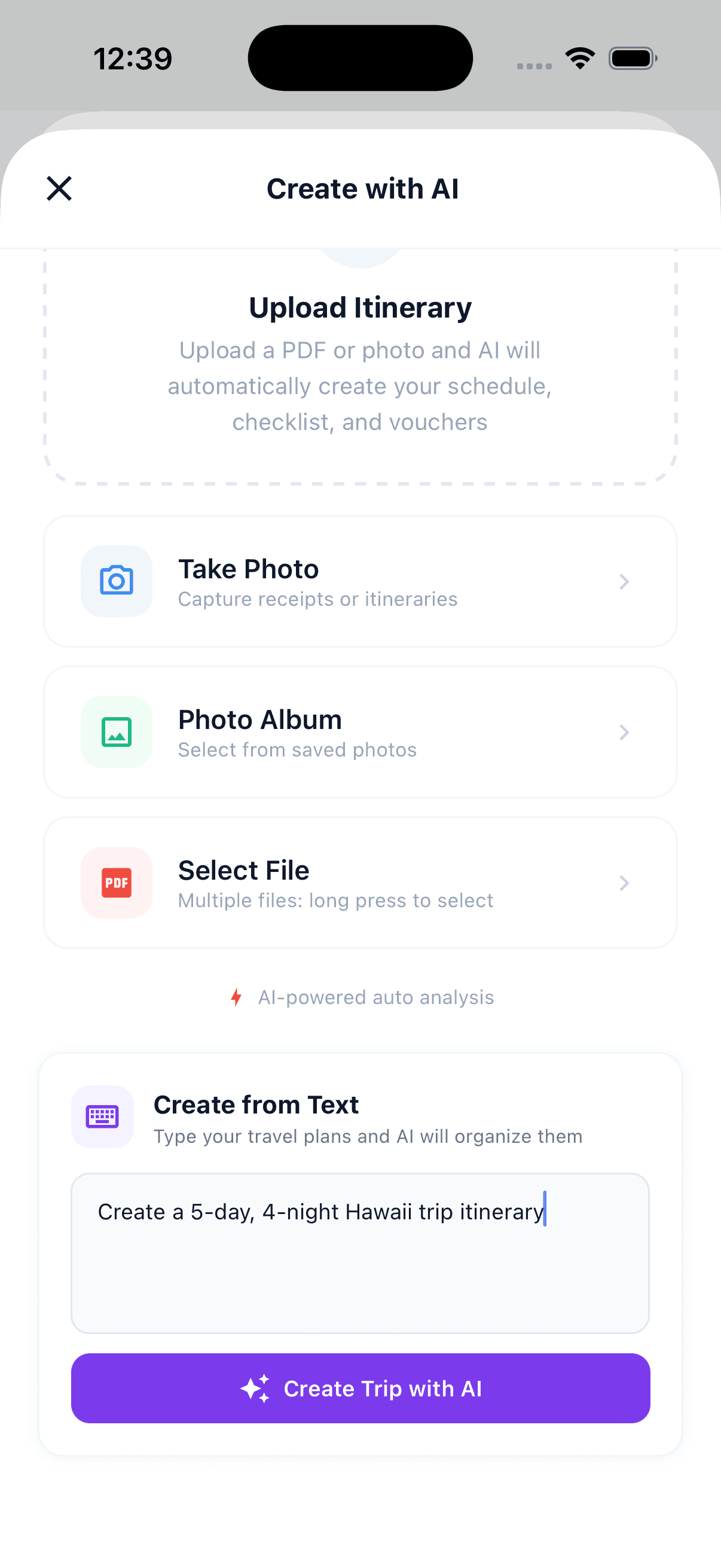
AI takes four kinds of input: take a photo, pick from camera roll, choose a PDF, or just type a sentence. Drop in the PDF you got from your tour operator and the flights, hotel, and tours land in the schedule automatically.

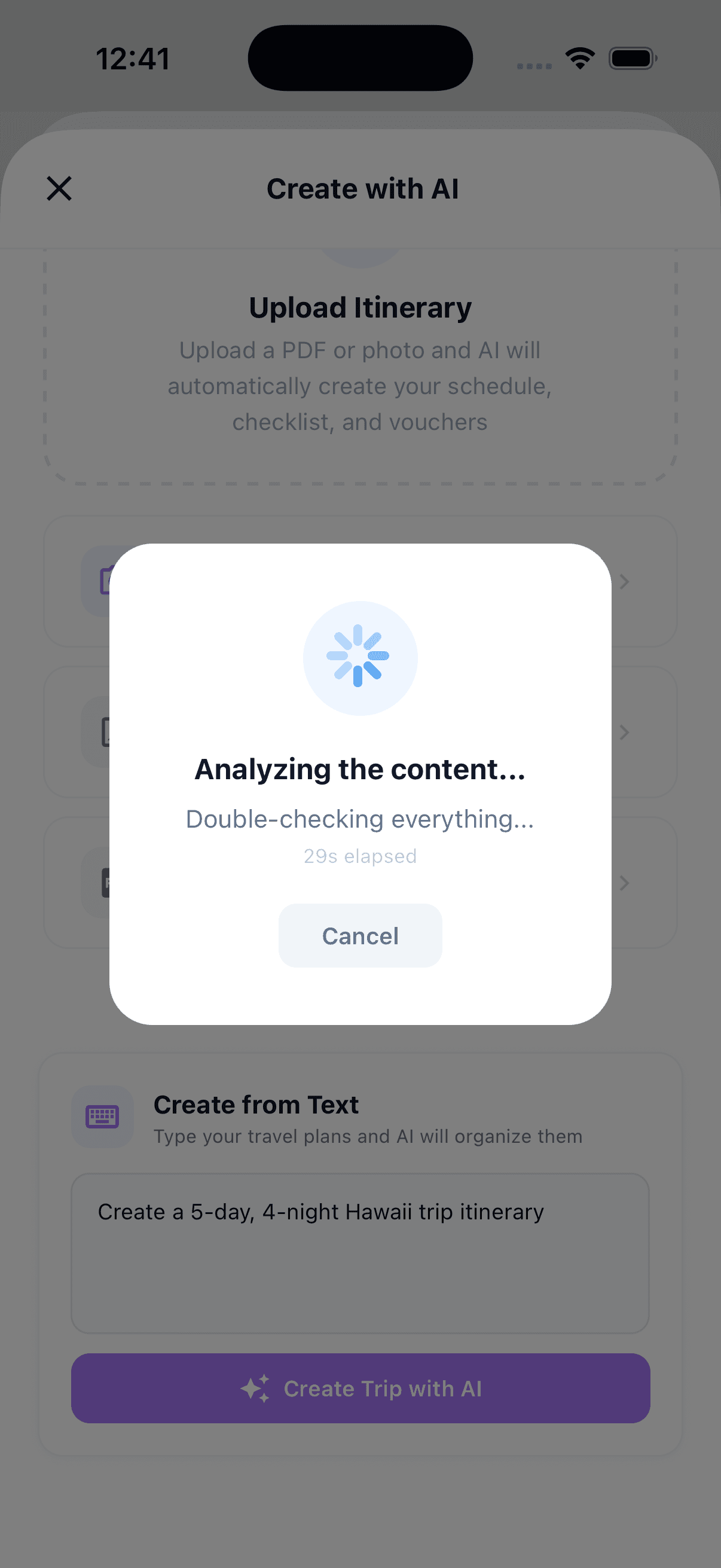
Each AI run costs at least 150 points; complex destinations cost more. Analysis usually takes 1–3 minutes.

AI output is a draft — keep all of it, or trim and refine. *AI-generated trips usually need a final pass of manual editing for finer details.*

  • Photo · Camera roll · PDF · Text input
  • e.g. 'Plan a 4-night honeymoon to Hawaii'
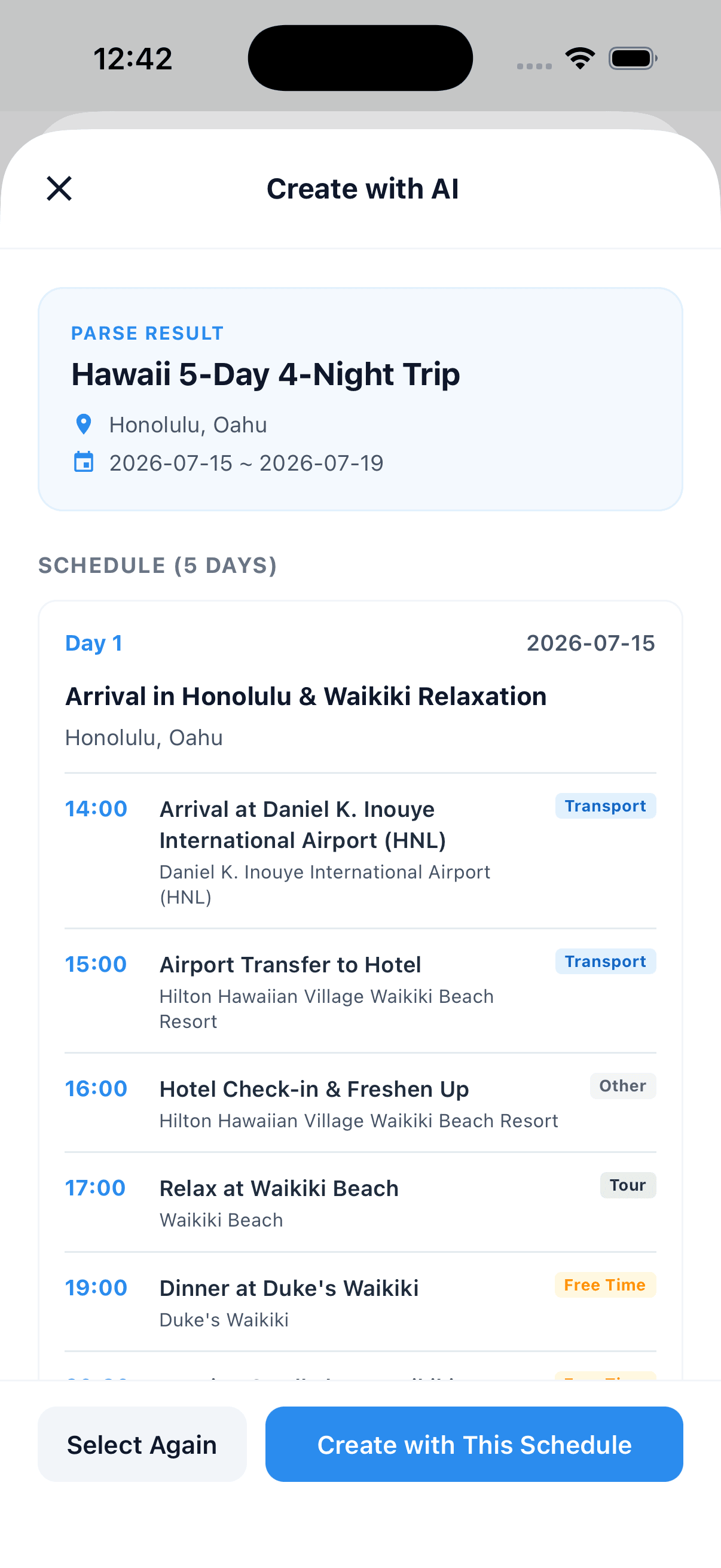
  • Preview, then 'Create from this' or 'Try again'
💡 Tip:Tip: Drop in the original PDF from your tour operator and your flights, check-ins, and tours all parse in one shot.
Create trip — AI vs Manual
AI inputs — photo, album, file, text
AI analyzing — loading screen
AI output — Hawaii 4-night itinerary preview
Step 3 · Home screen

Today's trip at a glance

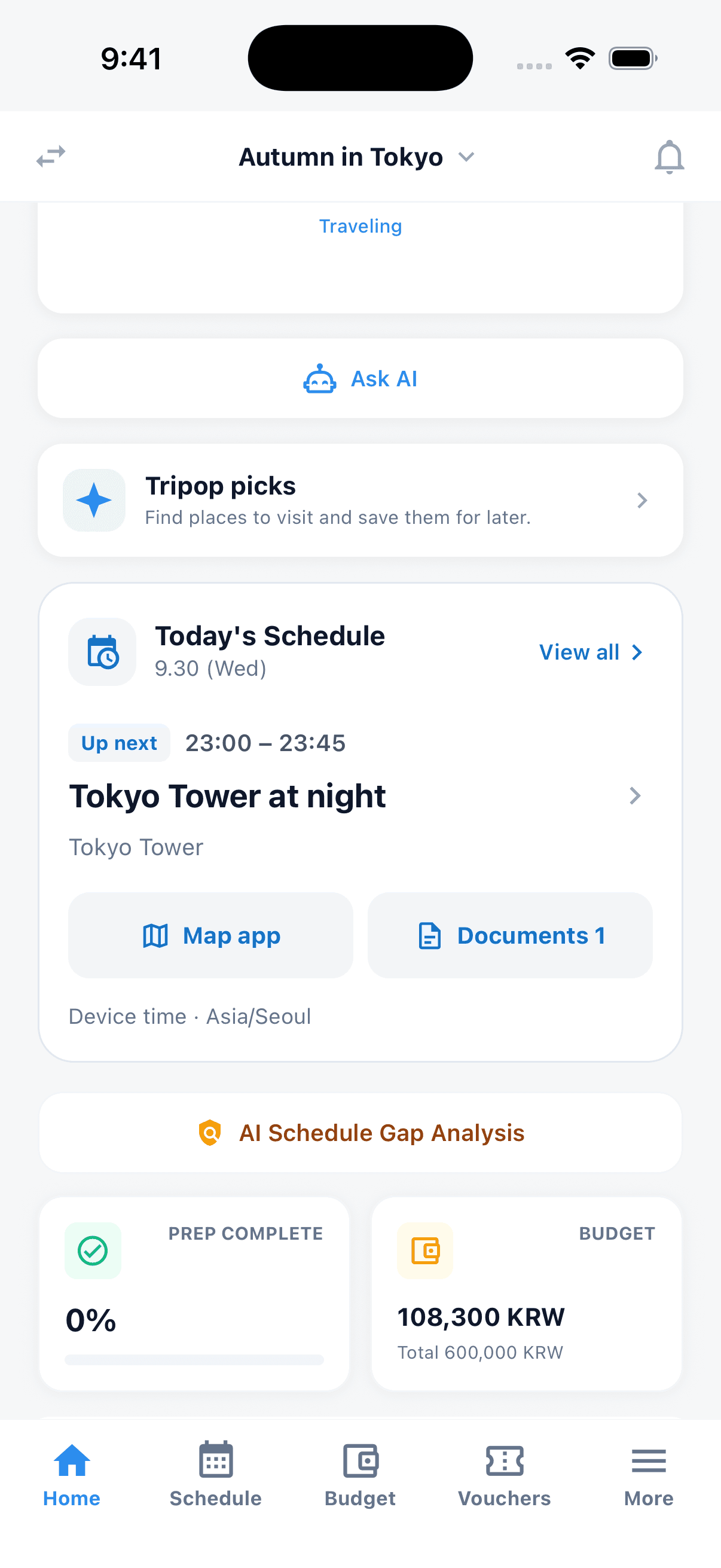
Today's events, AI chat, AI gap analysis, prep progress, and remaining budget — everything you check often, in one place.

The top card shows your current trip and the D-day countdown. The 'Ask AI' card is always one tap away.

AI scans the whole itinerary and surfaces missing transport, lodging, or visa items as a 'Heads-up' card so nothing falls through the cracks at the airport.

Day-by-day cards list events in chronological order. Tap any to jump straight to the event detail.

  • D-day count, trip dates, prep status
  • Ask AI — natural-language chat
  • AI gap analysis — '5 issues found'
  • Day 1, Day 2 ... in time order
Tripop home — D-day with AI gap analysis
Tripop home — Day 1 chronological events
Step 4 · Schedule tab

Summary · Calendar · Timeline — three views

See your full trip three ways: a daily summary list, a monthly calendar, and a 24-hour day timeline.

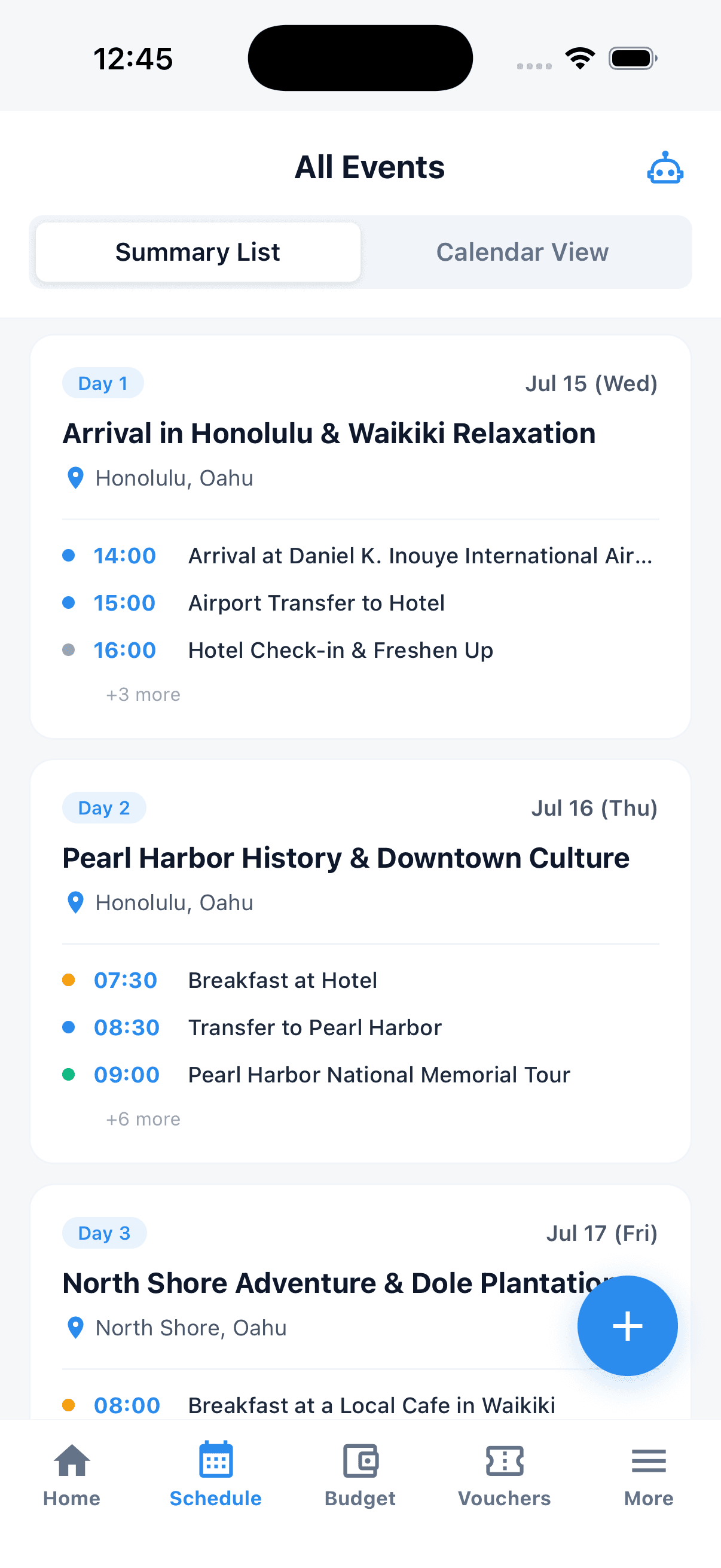
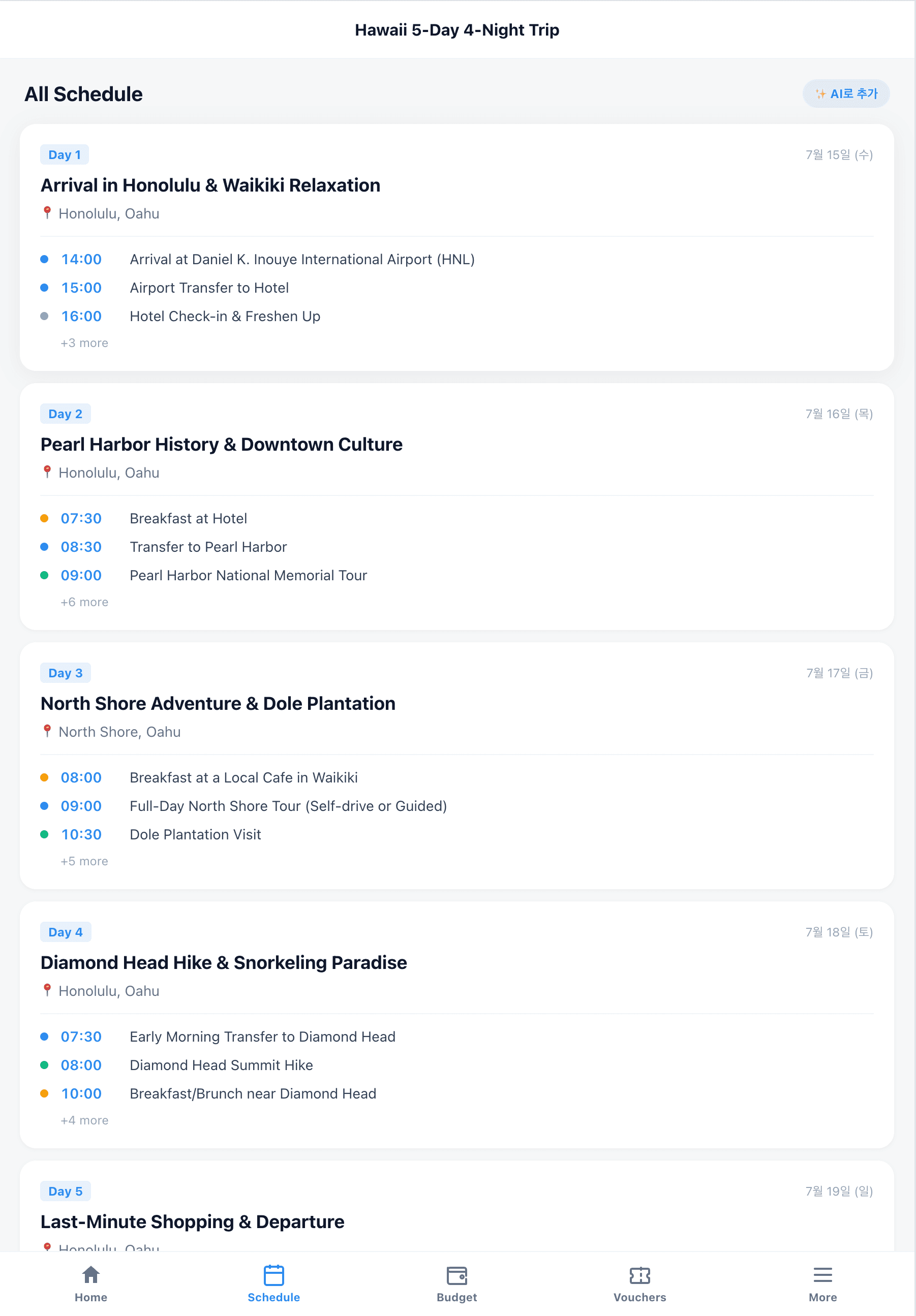
Summary view groups events by day. Each day card shows '+3 more' counts for events hidden in the preview.

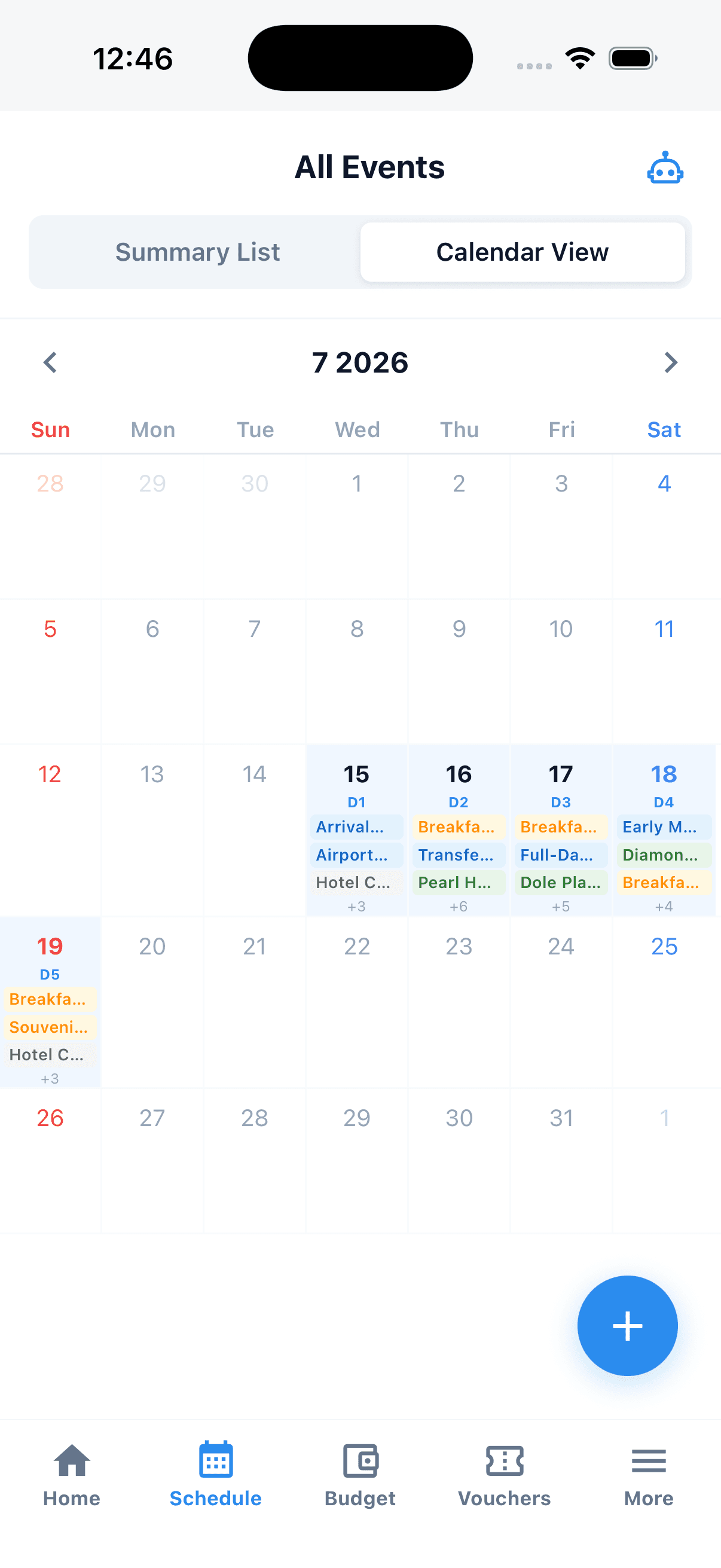
Calendar view paints the trip across the month so multi-week trips stay legible. Day cells show a peek at events.

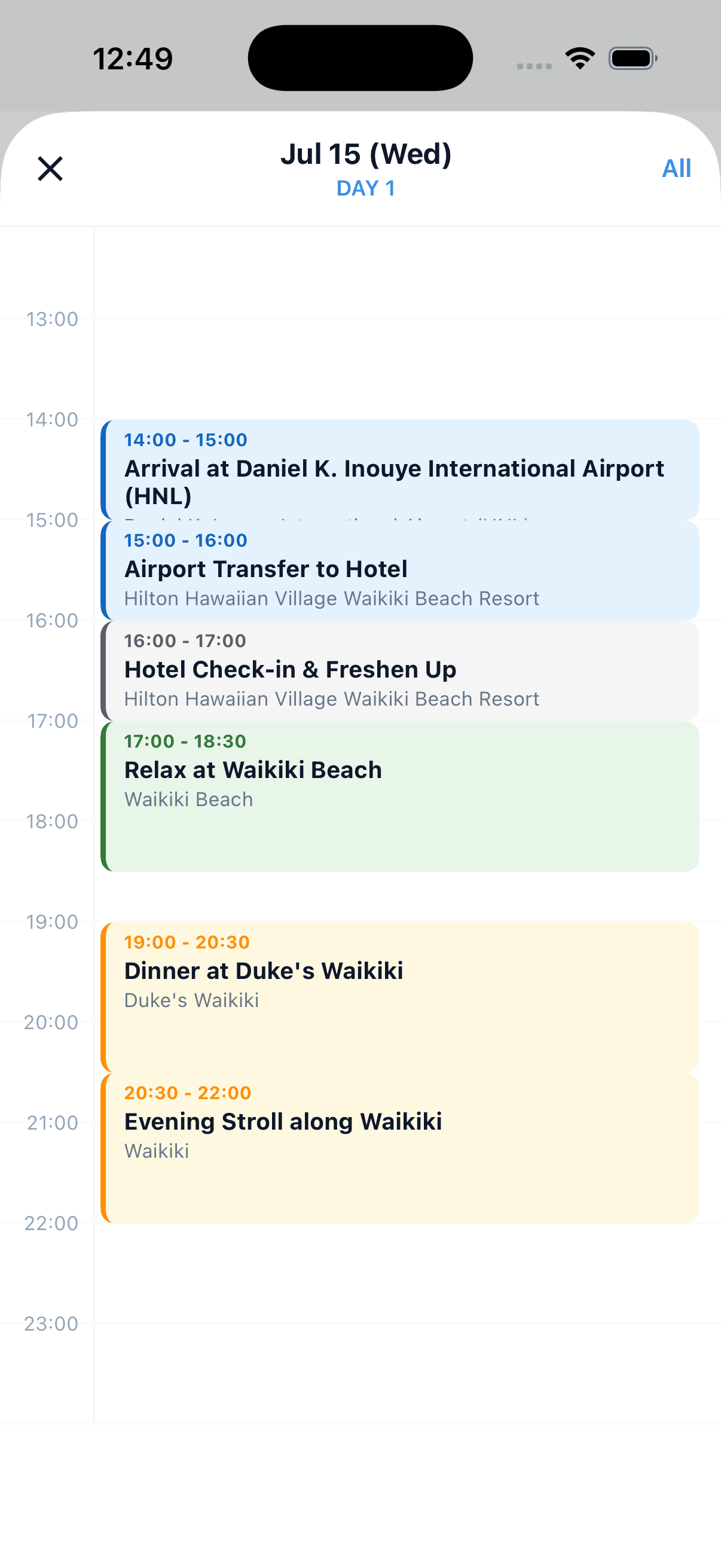
Tap any day to open the 24-hour timeline. Color = category (transit, lodging, meal, tour, other).

Schedule tab — daily summary list
Schedule tab — monthly calendar view
Schedule tab — 24-hour day timeline
Step 5 · Event detail

Map · notes · AI tips · vouchers in one screen

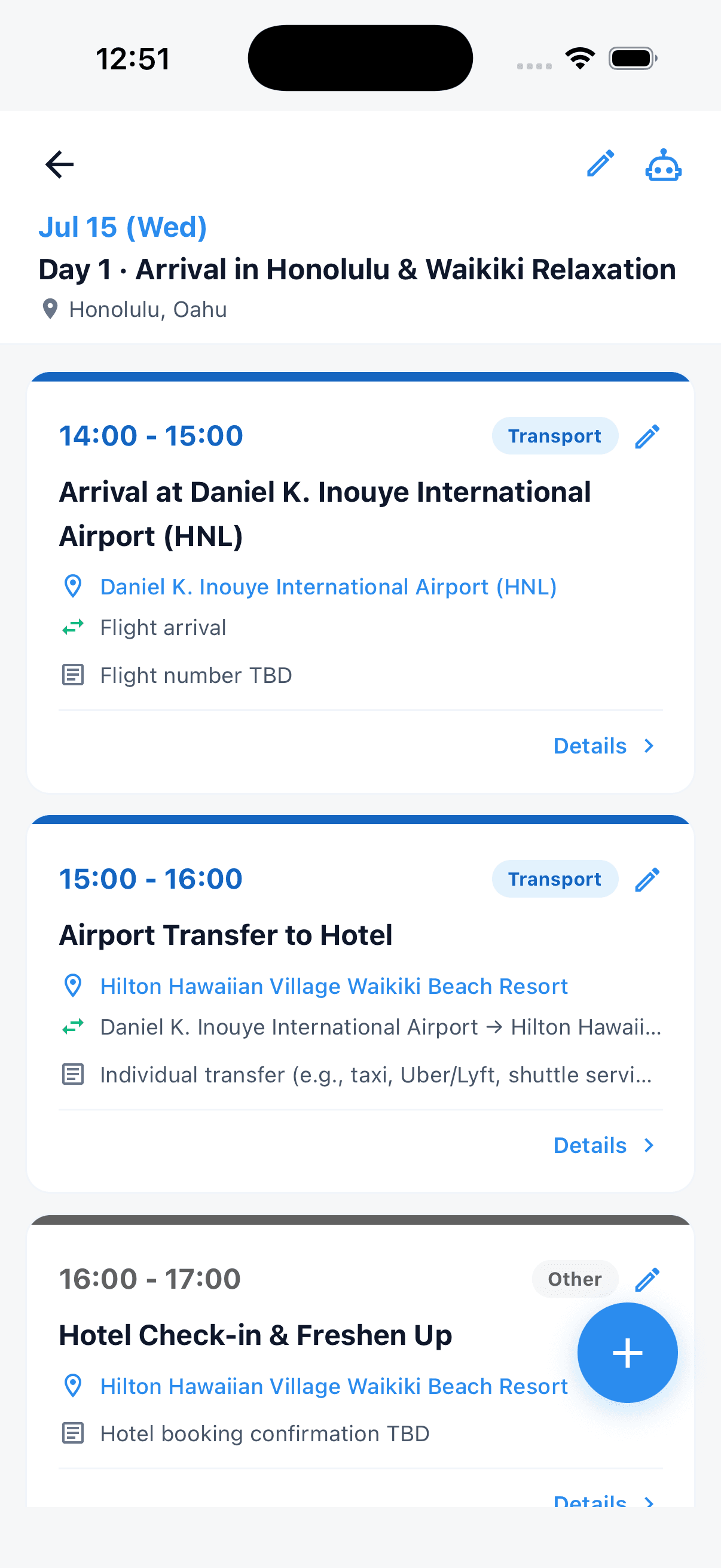
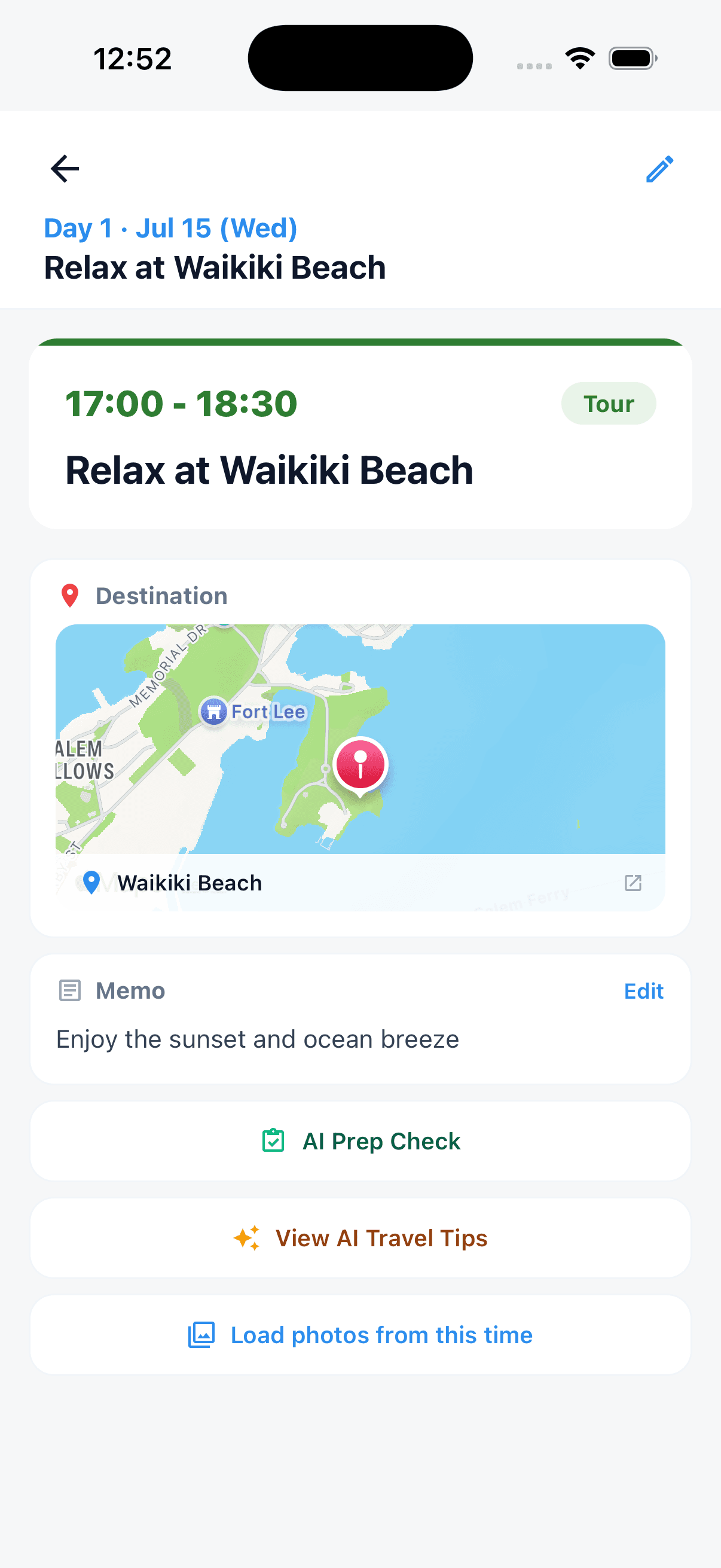
Each event packs origin/destination map, personal notes, AI travel tips, and any linked vouchers or photos.

Categories (transit, lodging, meal, tour, other) get distinct colors. You can edit time, place, and notes inline on the card.

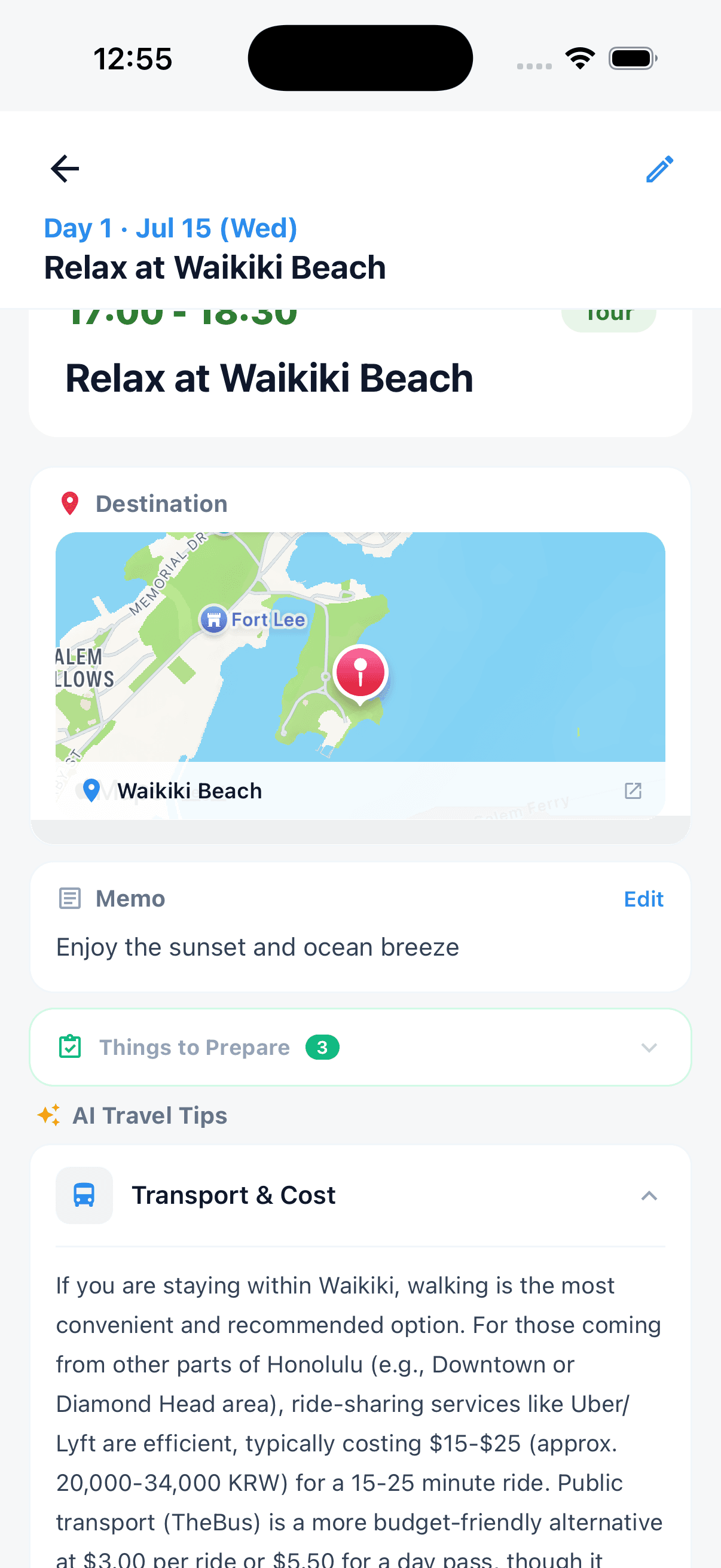
AI travel tips break down into five sections: transport & cost, food & restaurants, weather & dress code, local issues & cautions, hidden gems & recommendations. So 'how do I get from Waikiki to my hotel' returns Uber/Lyft/TheBus comparisons with prices.

AI-generated trips auto-link the matching flight/hotel voucher to the event. Tap the hotel check-in card to open the voucher right there.

  • Distinct colors for transit · lodging · meal · tour · other
  • Auto map: origin → destination
  • Five AI tip sections per event
  • Auto-attach photos taken in this time slot (iOS)
💡 Tip:Tip: 'Pull photos from this time slot' makes post-trip albums effortless.
Event detail — Day 1 chronological cards
Event detail — Waikiki Beach map and notes
AI travel tips — transport and cost section
Step 6 · Budget

AI receipt scan with auto FX conversion

Set display currency to USD and EUR/JPY/KRW receipts all convert automatically. One photo of a receipt fills in amount, currency, and category.

Add expenses four ways: photo, camera roll, PDF, or natural-language text like 'Lunch kimchi stew $7, taxi to Madrid airport €25'.

Manual entry has a foreign-currency toggle and 7 categories (flight, lodging, food, transit, activity, shopping, other) for one-tap registration.

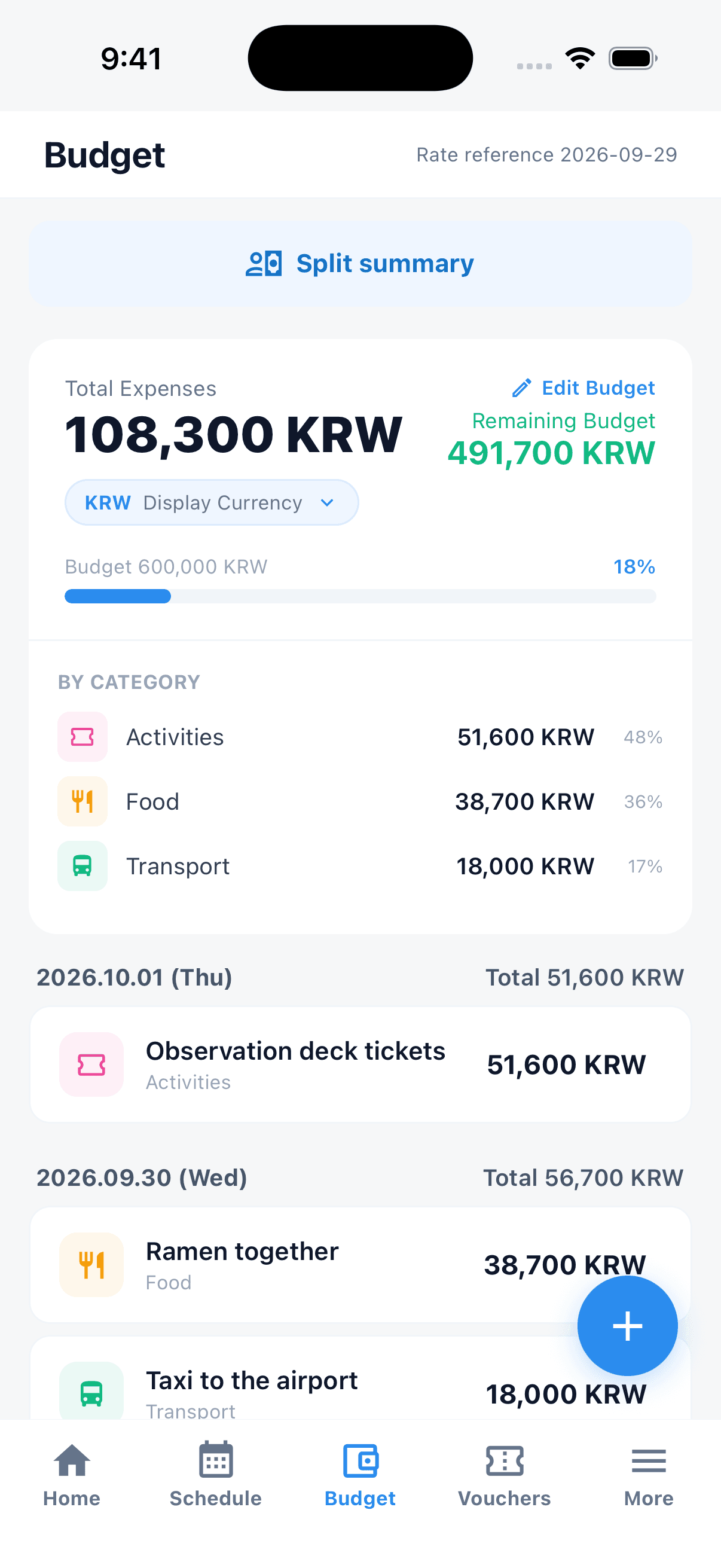
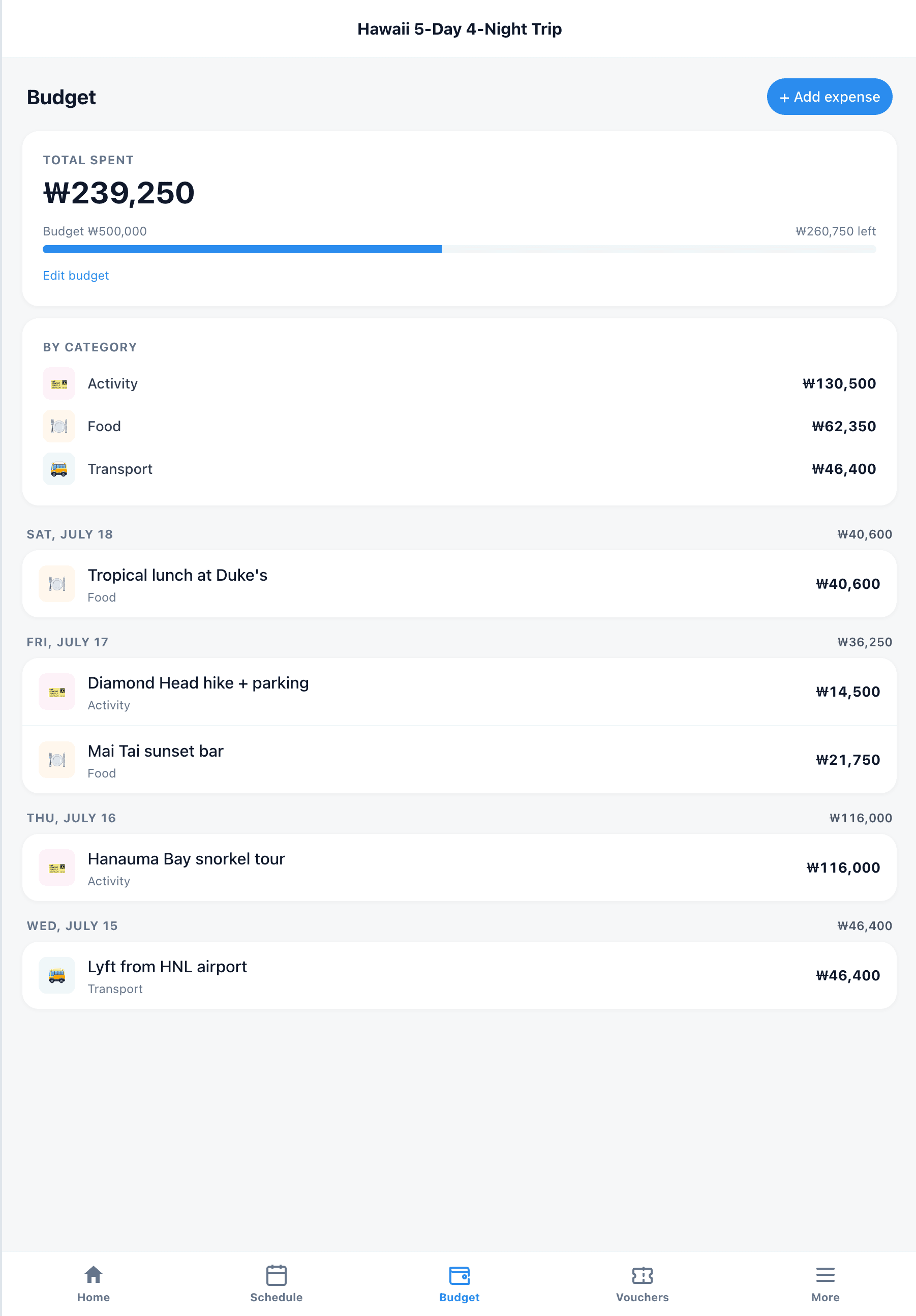
Total spend, remaining budget, and per-category share (food 62%, shopping 22% ...) update live.

*Card-issuer FX rates and Tripop's rates differ slightly in real time — treat as reference.*

  • AI receipt OCR — one photo, full entry
  • Auto FX (KRW · USD · JPY · EUR · CNY ...)
  • Budget vs actual chart per category
  • Bulk text-to-expense parsing
Budget — total spend with category breakdown
Add expense via AI — receipt upload options
Manual expense — currency and category
Step 7 · Vouchers

Flights, hotels, tours — all offline in one wallet

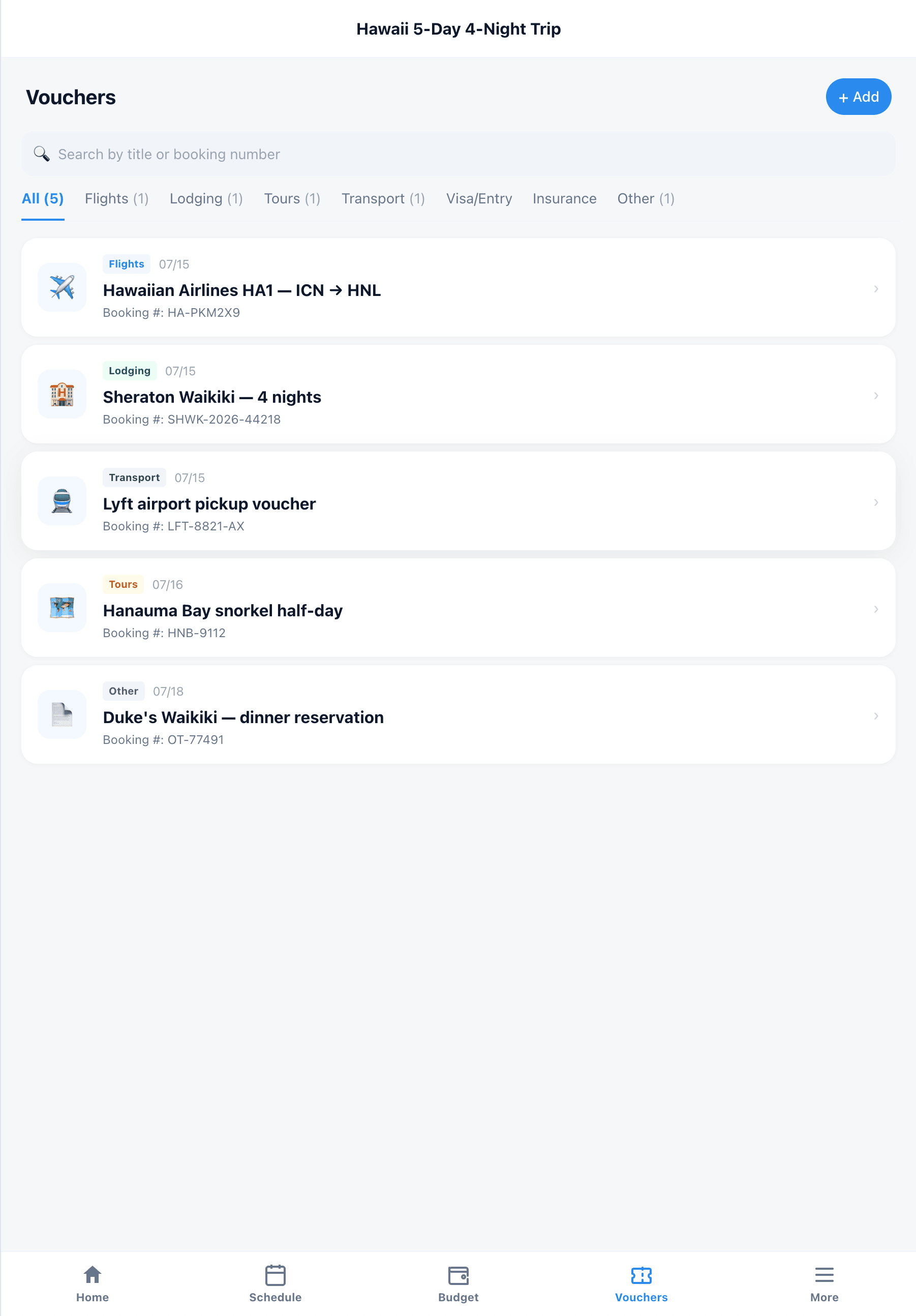
Tour-operator PDFs, e-tickets, hotel confirmations, tour vouchers, visas, insurance — all stored in Tripop and auto-linked to your schedule.

AI-built trips auto-link vouchers to the matching event. Tap the hotel check-in card and the room voucher opens right there.

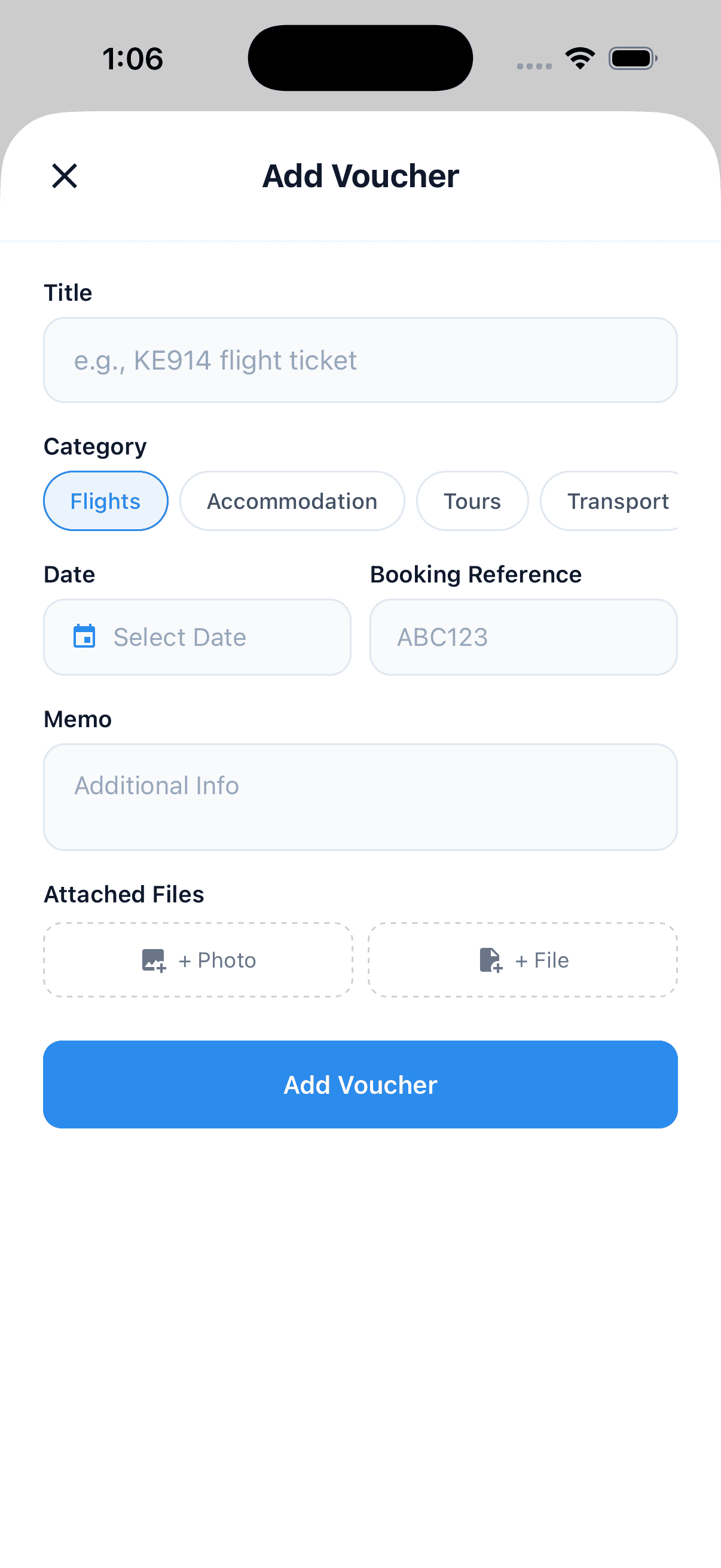
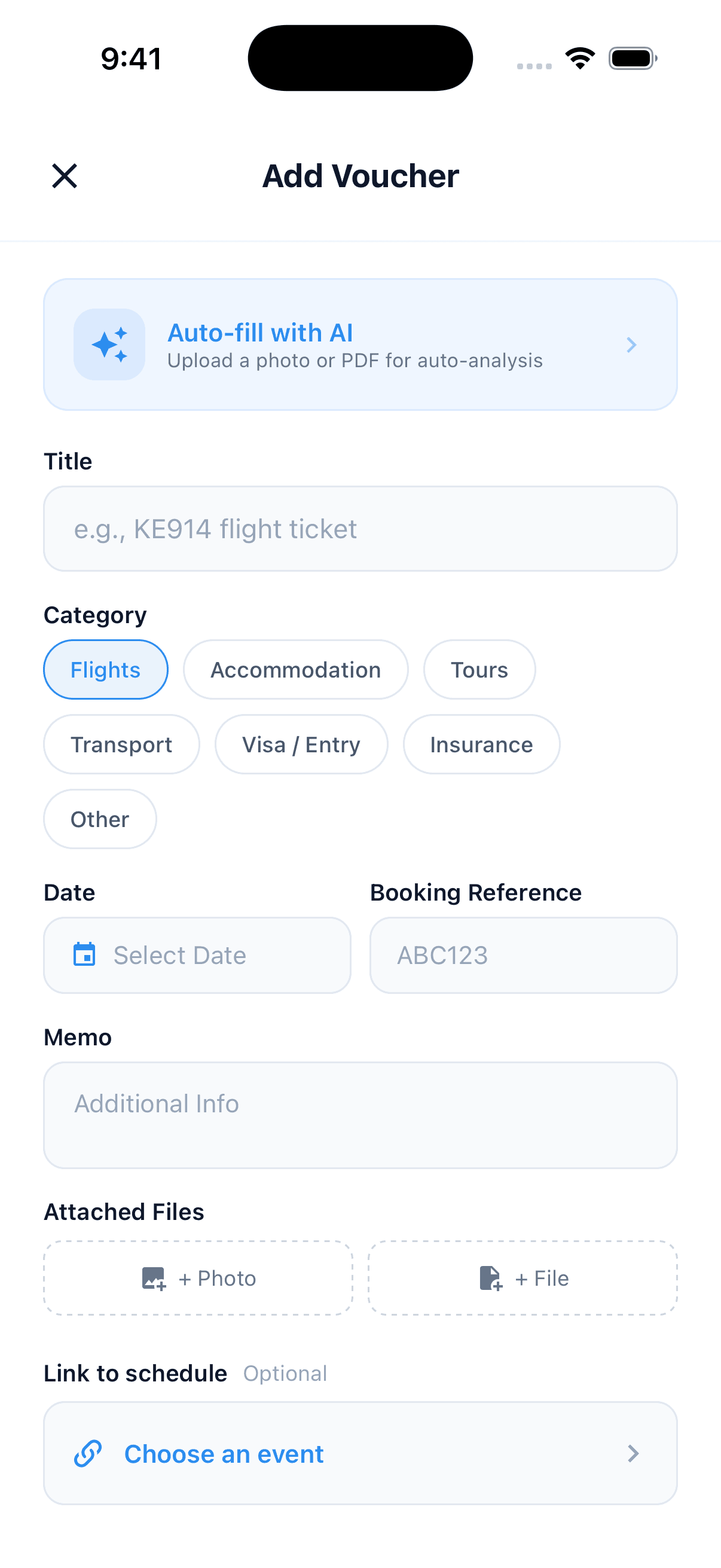
Manual add: pick a category (flight, lodging, tour, transit, visa/entry, insurance, other), enter date / booking number / notes, attach a photo or file.

Vouchers downloaded ahead of time open instantly offline. No panic at a hotel front desk with no Wi-Fi.

  • Categories: flight, lodging, tour, transit, visa/entry, insurance
  • Search and filter to find fast
  • Auto-linked to schedule cards
  • Offline viewer for PDFs and images built in
💡 Tip:Most useful in spotty hotel lobbies and signal-dead alleys in Europe.
Voucher list — flights, hotels, tours
Add voucher — category, booking number, file
Voucher detail — auto-linked to schedule
Step 8 · Invite / Share

Edit together, or share read-only

Invite companions by email and edit the same trip in real time. Choose Editor or Viewer permissions per person.

Editor: edits schedule, expenses, and vouchers. Family, friends, or coworkers planning together.

Viewer: read-only. Useful for tour guides who want clients to see the itinerary but not edit it.

Companions without the app can open the same trip on the Tripop web app via a single shared link.

  • Email invites
  • Editor / Viewer roles
  • Received · sent · members tabs
  • Same trip viewable on web
Invite manager — Editor/Viewer with email field
Killer feature · Offline

Works in airplane mode, abroad, anywhere

Sync once before you leave. Schedule, vouchers, and budgets keep working with no signal — on the plane, on the metro, in a hotel basement.

Available offline: create/edit/delete schedules, view vouchers, log expenses (cached FX), checklists.

Online required: AI features, live FX rates, sync, invitations.

When you're back online, changes auto-sync. If a conflict shows up, More → Sync trip lets you retry manually.

  • Offline edits, voucher viewing, expense logging
  • Cached map tiles for areas you've already opened
  • Auto-sync on reconnect
  • Manual sync option for conflict resolution
💡 Tip:Tip: Open the app once on Wi-Fi the day you depart. That single sync is enough.
iOS airplane mode — offline environment
Android airplane mode — offline environment
Step 9 · More / Settings

Switch trips · checklist · language · currency · maps

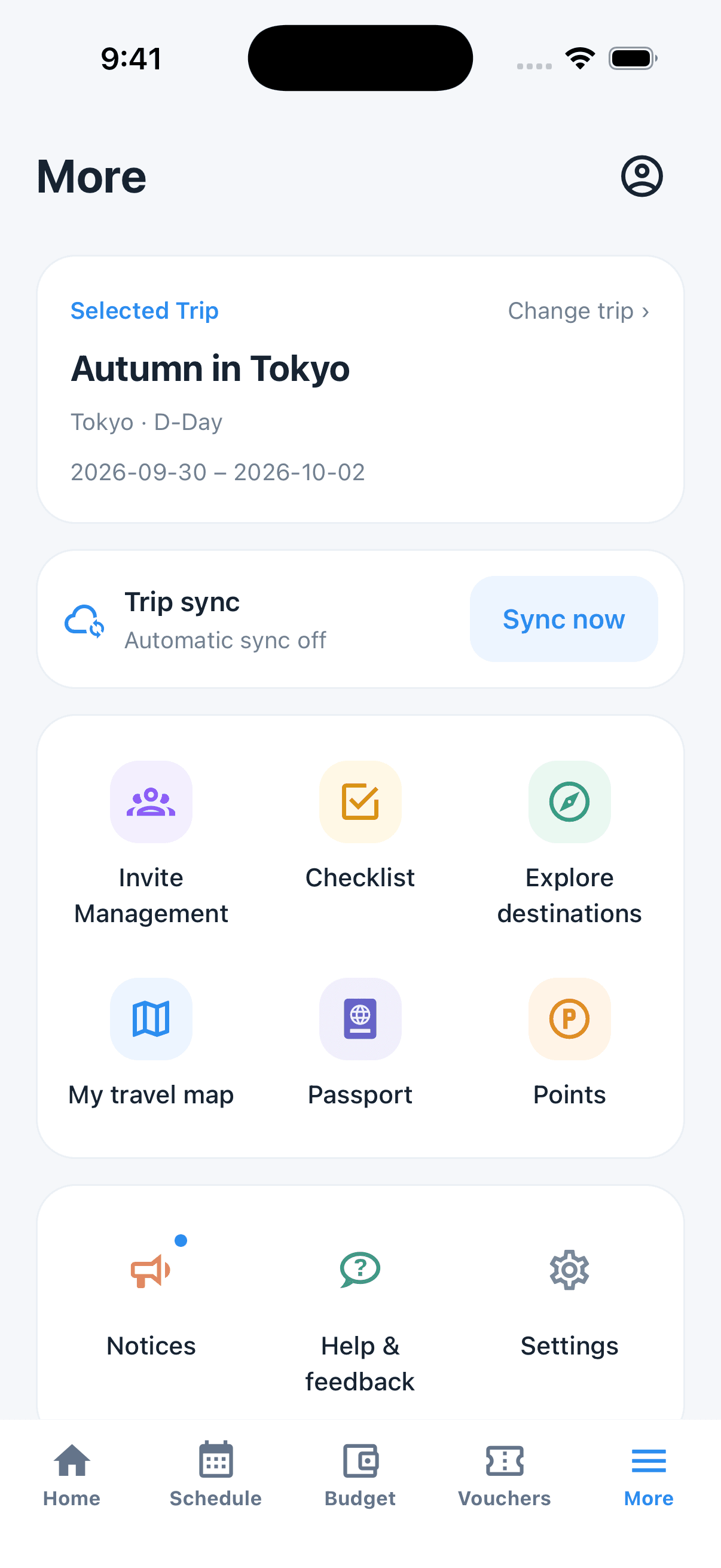
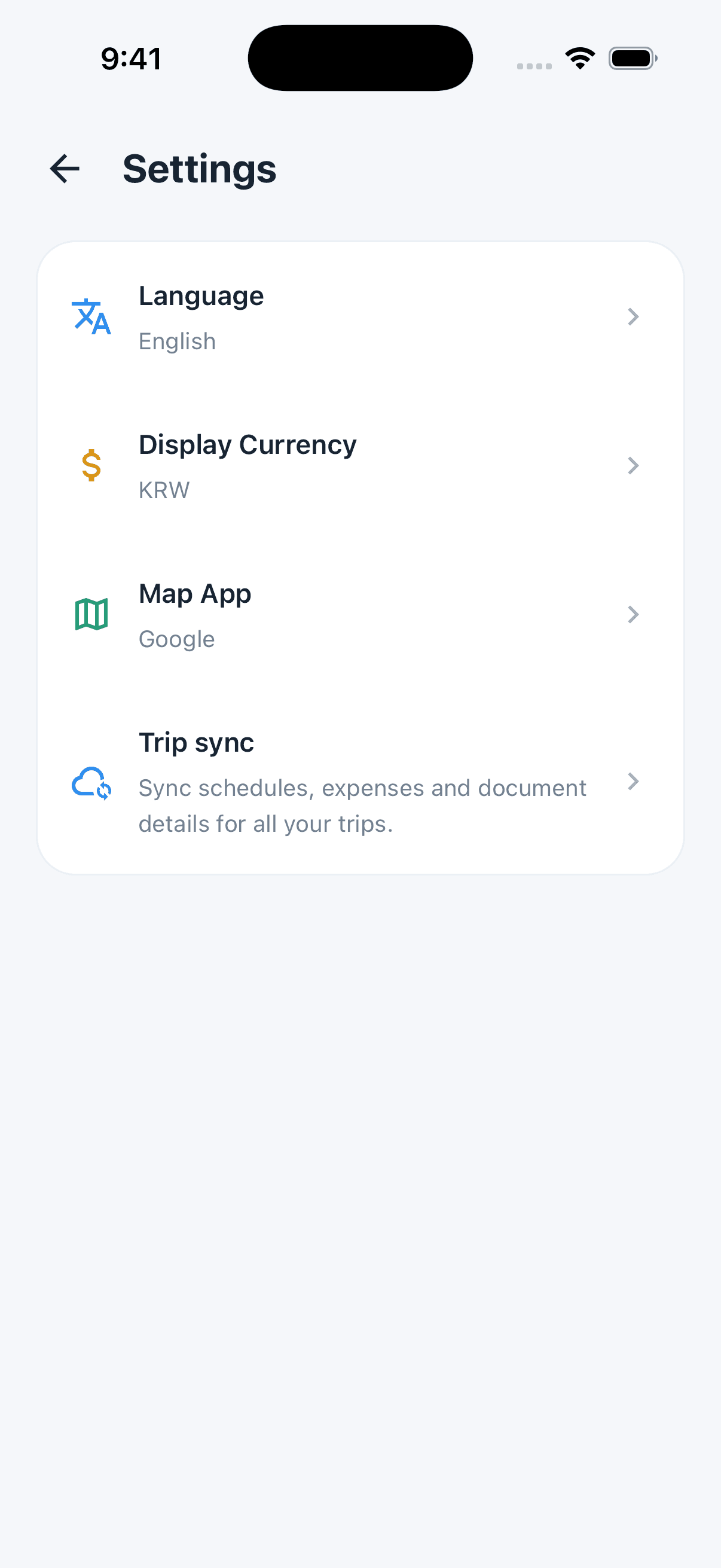
The More tab gathers trip switching, invites, checklist, account, sync, points, and settings.

Trip: pick / switch the active trip, manage invites, run the prep checklist.

Sync: toggle auto-sync, hit the manual 'Sync trip' button, see last sync time.

Points: AI feature balance, purchase, and history. (Android & web can purchase; iOS in progress.)

Settings: language (한국어 · English · 日本語 · 中文), 12 display currencies, default map app (Google / Apple).

More tab — trip · account · sync
More tab — points · language · currency · maps
Bonus · Web app

The same trip on PC and tablet, in any browser

Open tripop.app/web from any browser to view and edit the same trip — perfect for big-screen planning or sharing with companions who don't have the mobile app.

Sign in with Google or Apple on a desktop, laptop, or tablet, and every trip you made on mobile opens instantly. Schedule, vouchers, and budget all stay in sync.

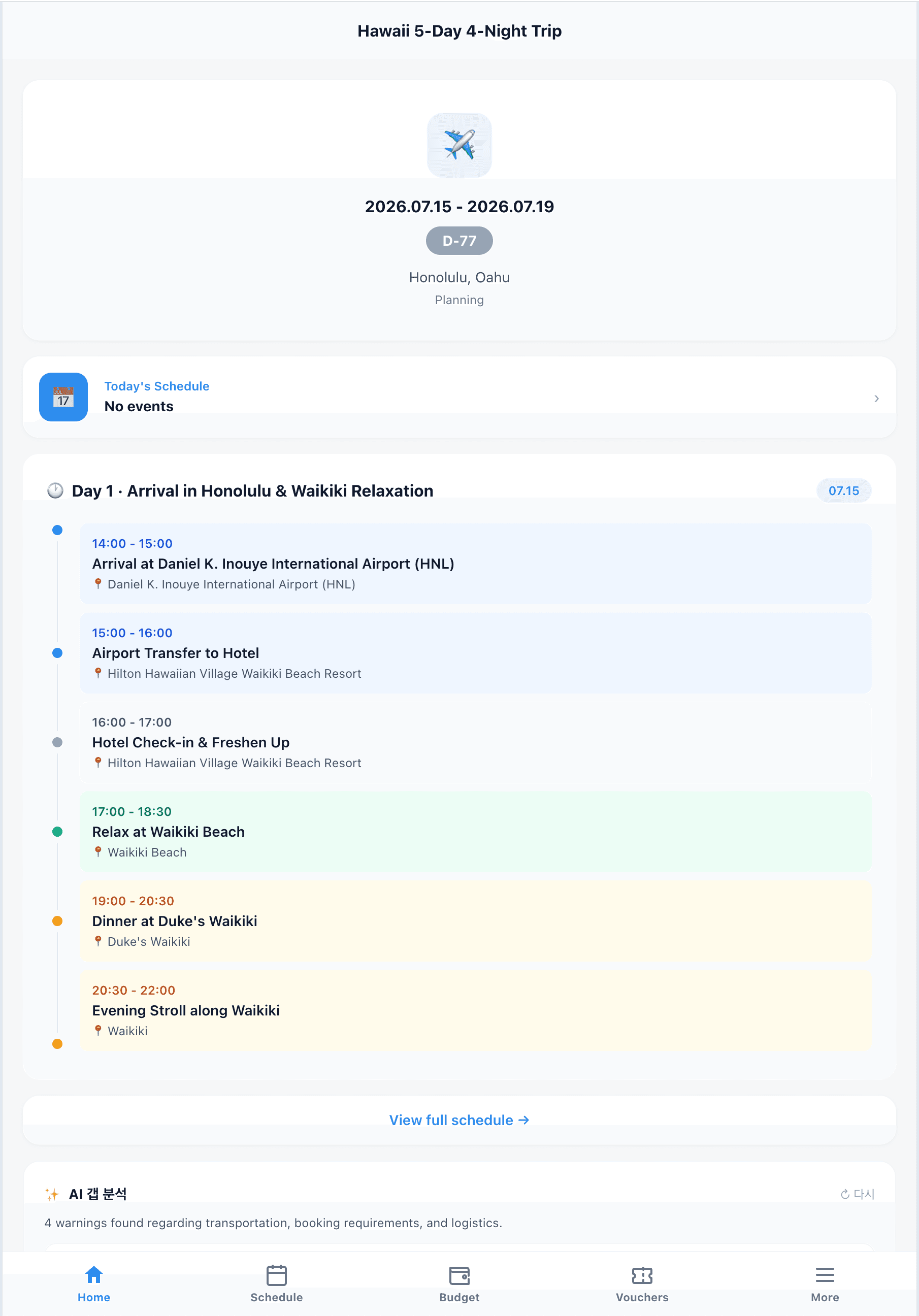
Best for pre-trip planning where keyboard input is faster than thumbs. The web app uses the same five-tab layout as mobile — Home, Schedule, Budget, Vouchers, More.

Share with a single link. Family or coworkers who skipped the app install can still view the itinerary and vouchers in their browser. Editor permission lets them co-edit from a PC.

  • My Trips dashboard — current, upcoming, and past trips at a glance
  • Home / Schedule / Budget / Vouchers — same layout as mobile
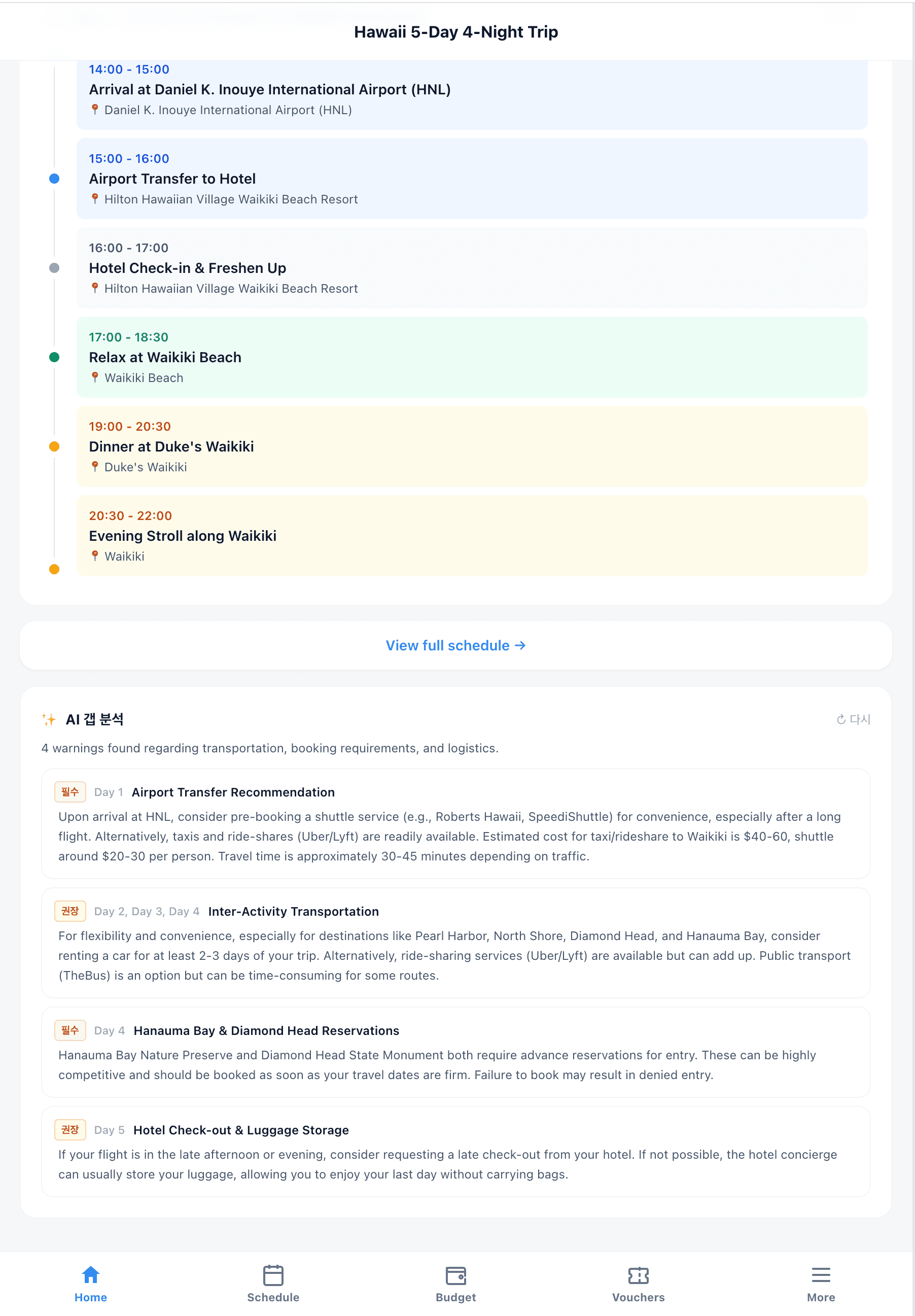
  • AI Gap Analysis flags missing prep automatically
  • Same data as your companions, edit live from PC
💡 Tip:Tip: Big edits before the trip on a laptop, quick edits on the road from mobile. Sync is automatic between them.
Web dashboard — current, upcoming, past trips
Web home — D-day with Day 1 timeline
Web schedule — Day 1 to Day 5 overview
Web budget — categories vs total spend
Web vouchers — flights, hotels, tours, transport

Where Tripop shines brightest

Package tour or fully independent — Tripop adapts to every trip style. Our sample is a Hawaii honeymoon, but real users plan trips of every shape and length.

Hawaii / Guam 4-night honeymoon

Drop the agency PDF (flights, hotel, 17 vouchers, tours) and AI assembles the schedule and voucher wallet in one go. Waikiki, Diamond Head, Hanauma Bay — all chronologically routed.

Japan independent trip (Tokyo · Osaka · Kyoto)

JR Pass and Shinkansen times, JPY budget auto-converted to your home currency, hotel-luggage and Takkyubin pickup tips per event.

Long Europe backpacking

Multiple cities, currencies, hotels. Per-category budget tracking and offline vouchers earn their keep — vouchers still open in dead-zone old-town alleys.

Southeast Asia family trip (Bangkok · Cebu · Bali)

Resort vouchers, activity tickets, airport pickup info — one place. Invite parents as Viewers so they only see the schedule.

Business trip + workation

Color-code work meetings vs personal events. One receipt photo finishes both budgeting and reimbursement records.

Tour guides / travel coordinators

Share a Viewer link — clients see the itinerary without installing the app. Co-guides can join as Editors and run the same trip together.

Frequently asked questions

Sign-up, billing, AI, data safety, sharing — everything answered

Are AI features paid?

Only AI uses points. Sign-up grants free points; you can also top up with rewarded ads, in-app purchase, or on the web. Manual entry is always free.

What exactly works offline?

Schedule create/edit/delete, voucher viewing, budget logging (cached FX), and checklists. Only AI features, live FX, sync, and invites need a connection.

Is my data safe?

All traffic is TLS-encrypted; data is stored encrypted on Supabase. See our Privacy Policy for full details.

Can I share a trip with someone else?

Yes. Email invites with Editor or Viewer role, and companions without the app can open the same trip on the Tripop web app.

Can I drop a tour-operator PDF in directly?

Yes. Pick PDF → AI parses flights, check-ins, tours, and vouchers automatically. Each call uses at least 150 points; complex trips cost more.

Which languages are supported?

Korean, English, Japanese, Simplified Chinese. AI replies in your selected language so multi-lingual companions can each use their own.

Does it work on iOS and Android?

iOS, Android, and web. One account syncs across all devices.

What happens if I delete my account?

Soft-delete: access is cut immediately. Rejoining starts a brand-new account; old data is not restored.

Start your trip with Tripop today

Free to download. Sign up gets free AI points. From Hawaii to Europe, every trip lives in one app.

iOS · Android · Web · 4 languages · Offline mode · AI travel assistant