
One of the most tedious parts of trip prep is copying scattered bookings into a schedule. Your flight sits in your inbox, your hotel on a booking site, your tour in yet another app. Tripop automates the whole thing. Upload a flight-booking PDF or a screenshot and the AI reads it, builds a day-by-day itinerary, and saves your original files as vouchers linked to the schedule.
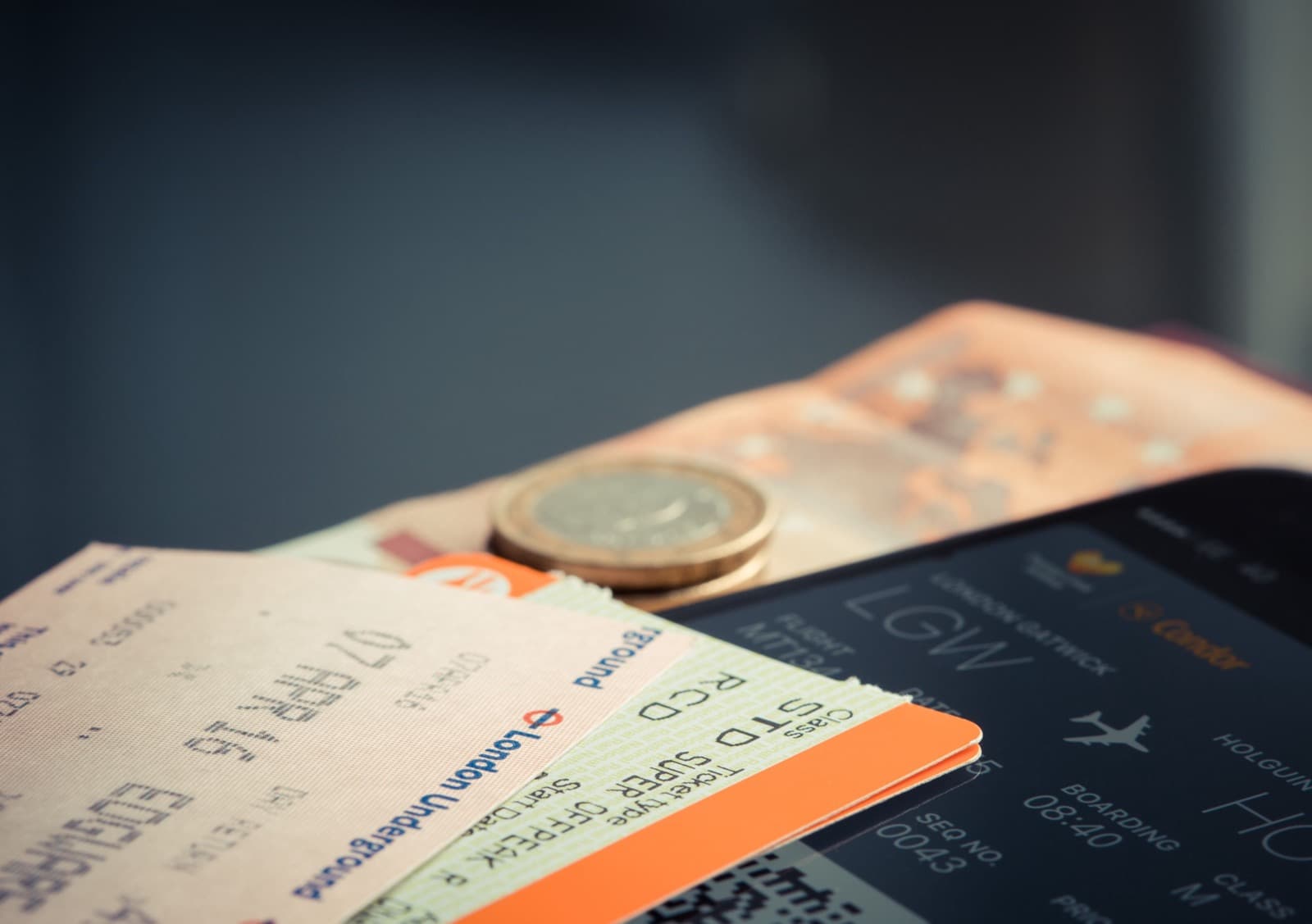
One flight ticket in your inbox is where the itinerary begins. Get the departure and arrival times in and the skeleton of your trip falls into place. Instead of you copying that ticket over by hand, Tripop's AI reads it and does the sorting.
Why starting with the flight makes life easy
The backbone of any itinerary is flight times. Day one really starts after you land, and the last day runs only until you take off. So when you enter the flight first, the trip length and how much room you have on the first and last days fall into place on their own. Add hotel check-in and check-out and the broad frame of the trip is set.
The catch is that copying all of it by hand takes time and invites mistakes. Checking and typing each flight number, date, time, and airport code, it's easy to mix up an arrival time or forget the time difference. Tripop hands that part to the AI.
What Tripop reads for you
Under 'Create with AI → Upload itinerary,' add a flight PDF or screenshot and the AI reads the file and sorts out the following on its own:
- Trip basics: title, destinations, start and end dates
- Day-by-day schedule: each day laid out with flights (transport events carrying departure and arrival times), hotel check-in, transfers, and free time
- Vouchers: your uploaded flight, hotel, and tour files saved by type
- Checklist: a list of what to pack
So from a single flight ticket you get the trip title, the dates, the arrival on day one, and the departure on the last day, all at once. For destinations in another time zone, it keeps the local times exactly as written on the file.

How to do it: three steps and you're done
It's simple in practice.
- Upload: under 'Create with AI → Upload itinerary,' pick your flight-booking PDF or a screenshot. You can also snap a photo with the camera on the spot.
- Auto-analysis: the AI reads the file, extracts flights, dates, times, and hotels, and builds the day-by-day itinerary, checklist, and vouchers. Just wait a moment.
- Review and finish: skim the generated plan in the preview and tap 'Create this trip.' Done.

What else is worth uploading besides flights
Tripop takes several files at once (up to 30, each 20MB or less). So beyond the flight, gather your hotel confirmations, local tour and admission vouchers, even a rental-car booking, upload them together, and a whole trip sorts itself out.
- Flights: departure and arrival transport events, plus a flight voucher
- Hotels: a check-in event, plus a lodging voucher
- Tours and tickets: an event on the right date, plus a tour voucher
Screenshot a confirmation email and upload the image, or send the PDF as is. Bookings that were scattered everywhere come together into one itinerary.
Auto-linked vouchers + offline access
Two things make Tripop genuinely convenient.
First, auto-linked vouchers. Each original file attaches itself to the event that matches by date and type. A flight PDF lands on the transport event for departure day; a hotel voucher lands on the check-in event. When you need to show a booking number, a seat, or a voucher at an airport or hotel desk, just open the original from the schedule. No digging back through your inbox.
Second, offline access. Once saved, your itinerary and vouchers stay on the device and open with no connection. On the plane, at an airport where roaming has dropped, in a destination with unreliable data, you can still check your flight and your schedule on the spot. It saves you from the panic of having no internet at the one moment you need it.

No PDF? One line of text
If you haven't booked a flight yet, you don't need a file. In 'Create with text,' type one line like 'plan a 4-night 5-day independent trip to Tokyo' and the AI builds a day-by-day itinerary. Lay down that skeleton first, then upload your flight and hotel PDFs later to attach the vouchers. Start with a file or with text, whichever suits you.
Tips for a sharper result
- Keep screenshots crisp: when you capture a booking email, keep the flight number, date, and time fully in frame for more accurate reading.
- Upload related files together: send flights, hotels, and tours in one batch and they auto-link by date for a cleaner result.
- Check the preview: for tricky bits like a time difference or a late-night arrival, give the preview a once-over before you finish.
- Split by trip: for different kinds of travel, like a work trip versus a holiday, upload the files separately into their own itineraries to keep things tidy.
A worked example: from one Tokyo flight ticket
Say you upload one round-trip Incheon–Tokyo flight PDF. From the outbound leg the AI reads 'Incheon 09:00 departure → Narita 11:30 arrival,' and from the return leg 'Narita 18:00 departure.' It recognizes a 4-night 5-day trip and frames the schedule so day one begins after the 11:30 arrival and the last day runs up to the 18:00 departure. For a destination in another time zone, it keeps the local times exactly as the file states them.
The flight PDF auto-links as a voucher to the transport events on the first and last days, and a packing checklist comes with it, covering things like your passport, a SIM card, and yen to exchange. Add a hotel confirmation and a lodging event drops onto the check-in date. All you did was pick a few files, yet the skeleton of the trip is complete. What's left is the fun part: deciding how to fill the daytime hours.
After the itinerary: sharing, expense tracking, and a checklist
The auto-built itinerary is a starting point, not the finish line. In Tripop you can share it with family, friends, or a partner and edit together, each adding the places they want until it settles into one shared plan. On the trip, log what you spend in a foreign-currency expense tracker that factors in the exchange rate, and record costs by snapping a photo of the receipt.
The packing checklist that came with your flight lets you tick items off before departure so nothing slips through. To fill the daytime sightseeing, just ask in text again, something like 'suggest a 4-night 5-day Tokyo sightseeing route,' and add it in. Because you're layering what you want onto an accurate skeleton built from your booking files, you never face a blank screen from scratch.
Who this is especially good for
The more your bookings scatter, as they do on independent travel, the bigger the payoff. It fits anyone who booked flights, hotels, and tours in different places and ended up with a pile of mismatched files, and anyone tired of copying confirmation emails into a schedule one by one. It makes the biggest difference for travelers who have to pull up flights and vouchers offline abroad, where roaming or data is unreliable. Once you've opened an original straight from your schedule at a check-in counter or a hotel desk, instead of rummaging through your inbox, it's hard to go back.
Package tours are no exception. Upload the itinerary PDF from your travel agency and it sorts into the same day-by-day schedule, with flight and hotel vouchers saved alongside. If your trip comes with booking files in any form, it helps. For a family trip, sharing the finished plan lets you and your parents or kids prepare from the same screen, which makes it easier still.
In short
Just upload a flight PDF or a screenshot and Tripop's AI reads the flights, dates, and times and files what the document contains into a day-by-day itinerary. Add your hotel and tour bookings in one go and a whole trip sorts itself out, with the original files saved as vouchers and linked to the schedule. Best of all, your saved itinerary and vouchers open offline on the plane or abroad, right when having no internet would otherwise leave you stuck. Save the time you used to spend copying booking files over, and get your trip prep done in 1-3 minutes.
Images: Pexels (Torsten Dettlaff: flight ticket and smartphone; Jakub Zerdzicki: travel documents; Shane Kell: airplane window; Kaboompics: trip planning on a phone; Oscar Chan: airport departure board), Pexels License.