
This article introduces Tripop and is written by the team that builds and operates it. Tripop is a separate service from Triple and NOL.
Triple ended its service on November 3, 2026 and merged into NOL. You can import your itineraries yourself after converting to a NOL account, but expense records did not move to NOL, and NOL currently has no expense tracker. To keep the spending you recorded for each trip, you need to download it as a file and store it yourself. NOL’s Triple service integration notice, in Korean
This guide goes through, in order, the Excel download steps NOL describes, the account and period to check before downloading, and how to keep the downloaded file. At the end, it introduces Budget, Tripop’s expense tracker, as a way to record your next trip’s expenses split with your companions and to settle up.
Triple expense records did not move to NOL
In the notice Triple issued on September 10, 2026, expense records were left out of the items moving to NOL. Instead, the same notice advised saving the file in advance with the app’s “Export expenses (CSV)” (가계부 내보내기(CSV)) option. NOL says a CSV file saved this way is for personal safekeeping and cannot be uploaded to NOL and used again. NOL’s official blog, October 23, in Korean
NOL says it currently does not offer the expense tracker or checklists. Because you cannot keep using the expense book in NOL, what to do now is download your records as a file, as NOL describes. NOL’s Triple service integration notice, in Korean
If you did not save the file: the steps to download it from NOL in Excel
Even if you did not save the CSV file before the closure, there is a way. For customers who did not download their expense file before the service ended, NOL provides a download feature for getting the expense records written in Triple as an Excel file. In NOL’s Triple service integration notice, tapping “View details on how to download the expense records file” (가계부 파일 다운로드 방법 자세히 보기) leads to NOL’s FAQ on downloading Triple expense records, in Korean. It gives these steps:
- Open “Go to download expense records” (가계부 다운로드 받으러 가기).
- Sign in with the Triple account you kept the expenses in. For an account already converted to NOL, choose “Start with NOL ID” (NOL 아이디로 시작하기) and sign in.
- Tap “Download the expense records of all itineraries” (모든 일정의 가계부 다운받기) to save an Excel (.xlsx) file to your device.
If two or more trips have expense records, each trip gets its own sheet.
The account and period to check before downloading
The first thing to check is the account. Signing in with an account other than the one you kept the expenses in may show no records. If you used Triple with more than one account, start by recalling which one you kept your expenses in.
If no expense records were written in the account, the sheet in the downloaded file shows the message “You have not written any expense records” (작성하신 가계부가 없습니다). If you definitely kept expense records but see this message, check again that you signed in with the right account.
Next is the period. The download is available for 12 months from November 3, 2026, the day Triple’s service ended. NOL’s FAQ on downloading Triple expense records, in Korean
Importing Triple itineraries into NOL is also available for 12 months from the same day, but the difference is that itineraries are imported into NOL from a Triple account converted to a NOL account, while expense records are downloaded as a file. How to import itineraries and check existing bookings is covered in Triple has merged into NOL: what to check, and how to plan your next trip with Tripop. NOL’s Triple service integration notice, in Korean
Keep an extra copy of the downloaded file
The file exported from the Triple app before the closure is a CSV file, and the file you download from NOL now is an Excel (.xlsx) file. NOL has no expense tracker, so you will use both files to keep the records of your past trips.
The download is open for only 12 months. Do not keep the downloaded file only on your phone; store another copy on a computer or in cloud storage. Writing the download date in the file name, and keeping any CSV files you saved before the closure in the same folder, makes them easier to find later.
Tripop cannot import CSV or Excel files at the moment either. Keep past trips’ records in the file you downloaded and start recording your next trip’s expenses in Tripop’s expense tracker.
How to use Tripop’s expense tracker for your next trip
In Budget, Tripop’s expense tracker, you record each expense’s amount, currency and category. The Budget screen shows spending by category, and if you set a trip budget, the remaining budget too. Converted amounts for money spent in a foreign currency, the converted total and the remaining budget appear when the needed exchange-rate information is available.
For money spent together with companions, you choose who shares each expense. In the Budget tab of Tripop’s iOS and Android apps, tap an expense and open “Split expense” to choose who paid it and who shares it, then split it equally or enter a different amount for each person. If several people paid part of the bill, you can choose more than one payer.
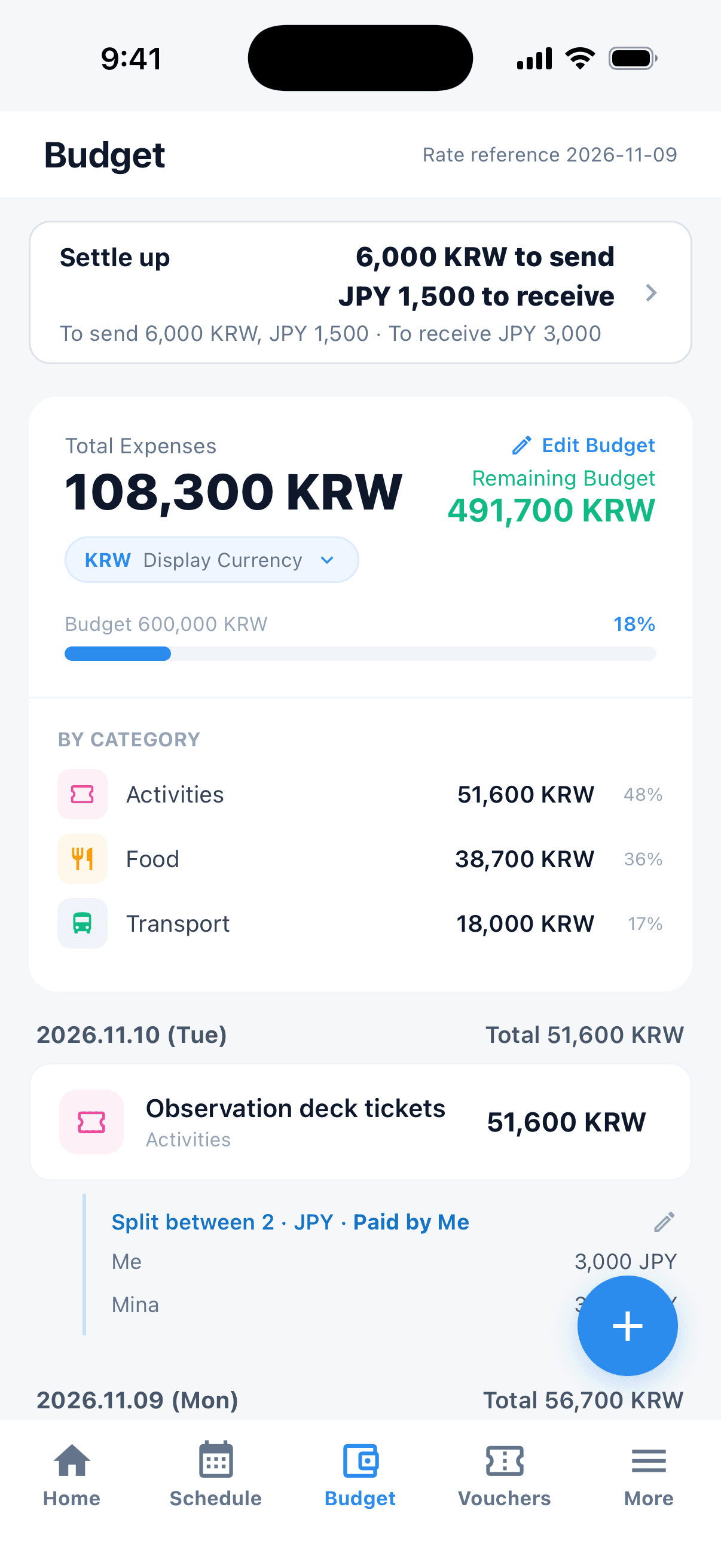
The “Settle up” screen in Budget gathers these splits and shows who should send how much to whom. Amounts in different currencies are never added together; each currency is settled separately. Splits without a payer are left out of the settle-up, so if the screen shows a notice, tap the expense listed under it and choose who paid. The “Split summary” shows each split by date and by person.
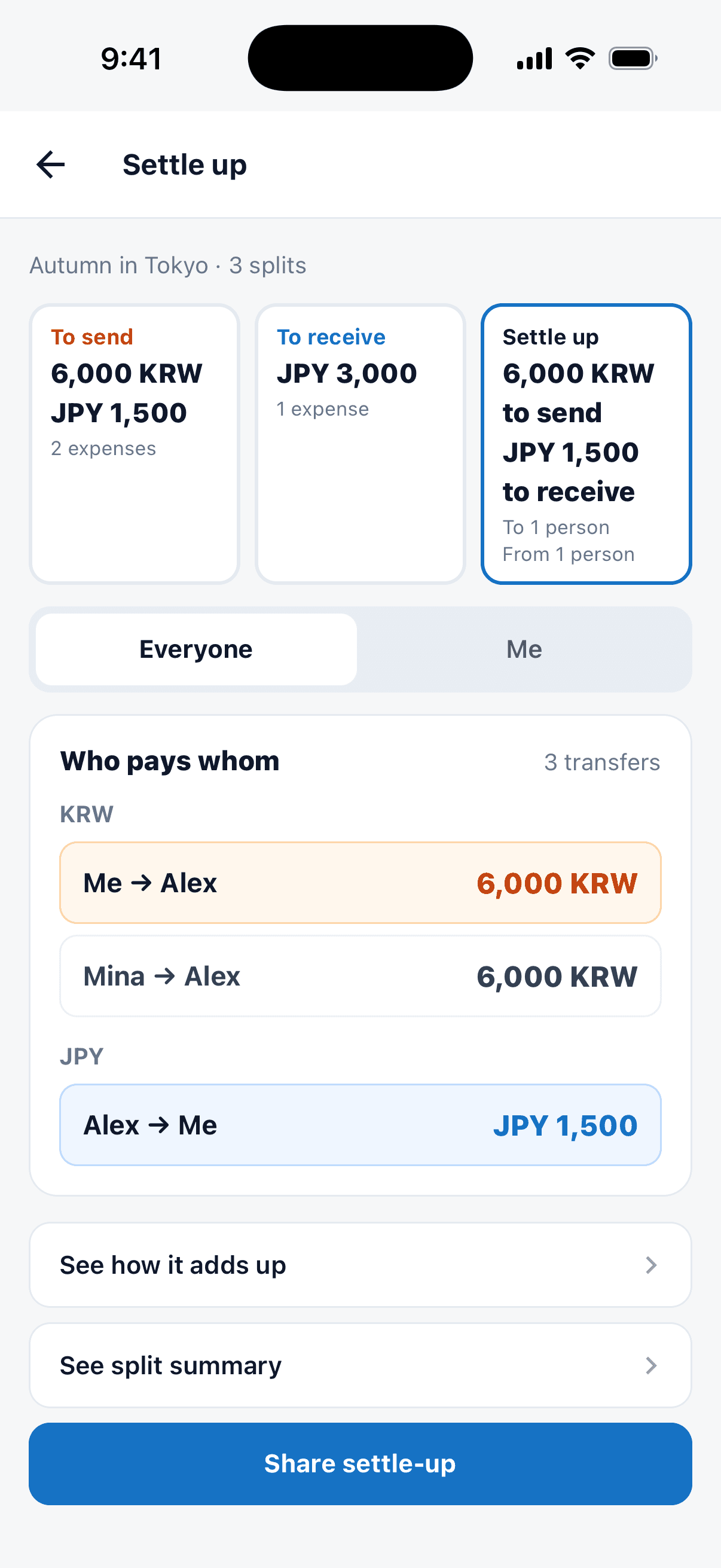
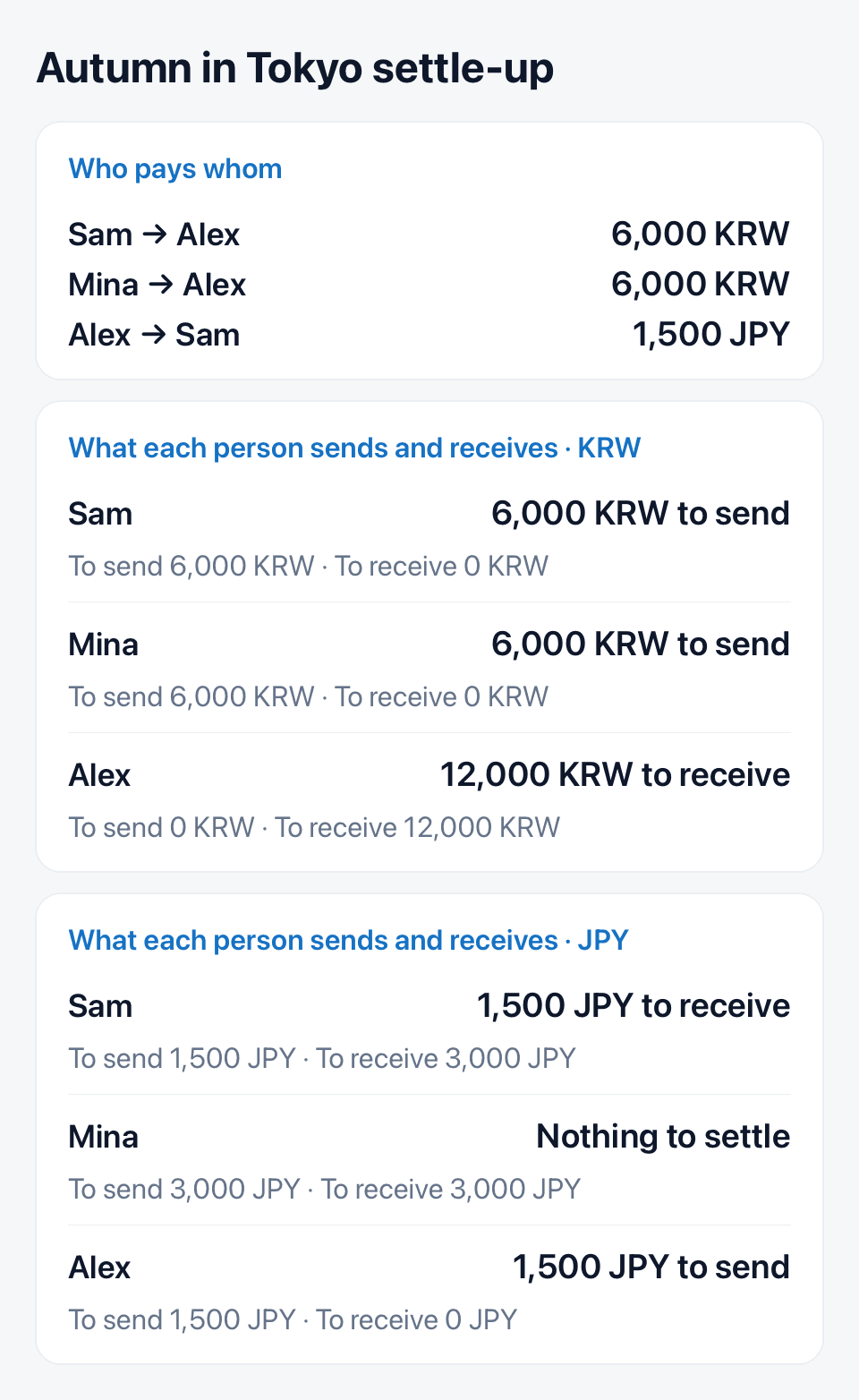
A trip owner or editor can use “Share settle-up” to send the result to companions as an image or text. Setting splits and fetching the latest settle-up results require signing in to the app as the trip owner or an editor and an internet connection. Signed-in owners and editors can see the same result on the web settlement screen; payers and splits are chosen in the app.
Sharing an expense tracker with companions: what to decide at the start
Using “Split expense” on the day you record an expense can cut down on trying to remember later who paid. Even for the same meal, the person who paid and the people who ate may differ, so choose the payer and who shares it right then.
The settle-up result does not make the transfers for you. Make actual transfers separately through your chosen financial service, and confirm receipt with your companions after sending. Because each currency is calculated separately, check the amount to send in each currency separately too.
Tripop is free to download and use for its basic functions. If you would like to set up your next trip’s expense tracker in advance, you can start with the Tripop app download guide.
Triple and NOL expense record information checked on November 20, 2026. Consult NOL’s latest official instructions for the download steps and the availability period.