
A guide to AI travel document organisation from the Tripop team.
To organise flight confirmations, hotel documents and travel receipts, use Tripop AI to read the details and keep the records with your trip. Review the booking analysis before saving, then open the saved document to check booking references and other details. Receipt photos and spending notes can be added to the ledger through AI analysis.
Before departure, you gather confirmations from different booking services. During the trip, you collect payment records. Adding them to the relevant trip gives you a place to find the hotel confirmation at check-in and review the day's spending that evening.
Start organising booking documents with the Tripop app
Bring in the confirmation instead of retyping it
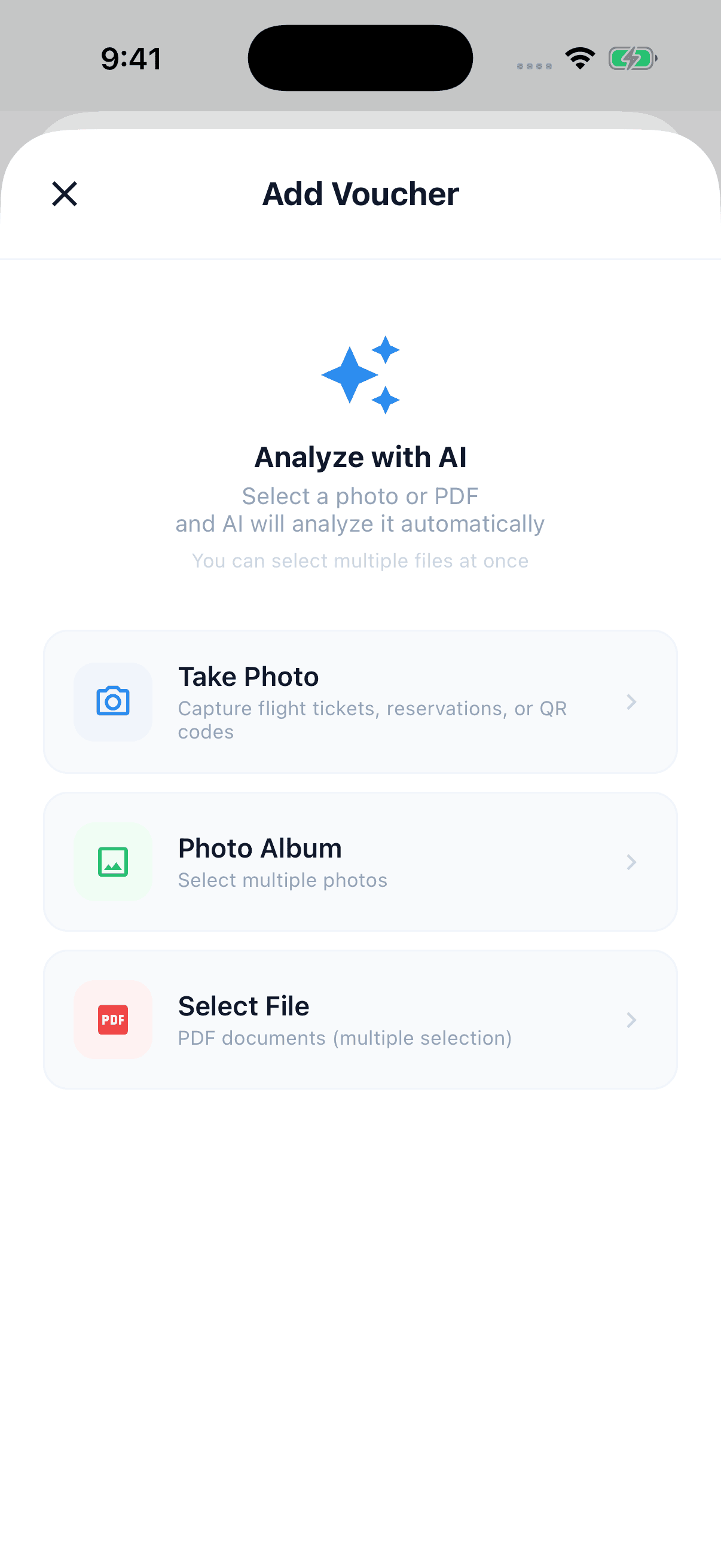
From the app's reservation-document screen, choose a flight PDF or an image of a hotel confirmation. You can select pictures from your library or take a photo. After analysis, review the title and date of each new document. Booking references and other extracted details are also organised within the reservation record.
Review the results, save them, then compare dates and booking references with the original in the document details. A clear file makes small text easier to check. Look over addresses and meeting points that you will need during the trip too.
When you upload several files, the results distinguish between creating new reservation records and attaching files to existing ones. Check which document each file will belong to before saving so that files for the same booking stay together.
Connect the document to the day you will need it
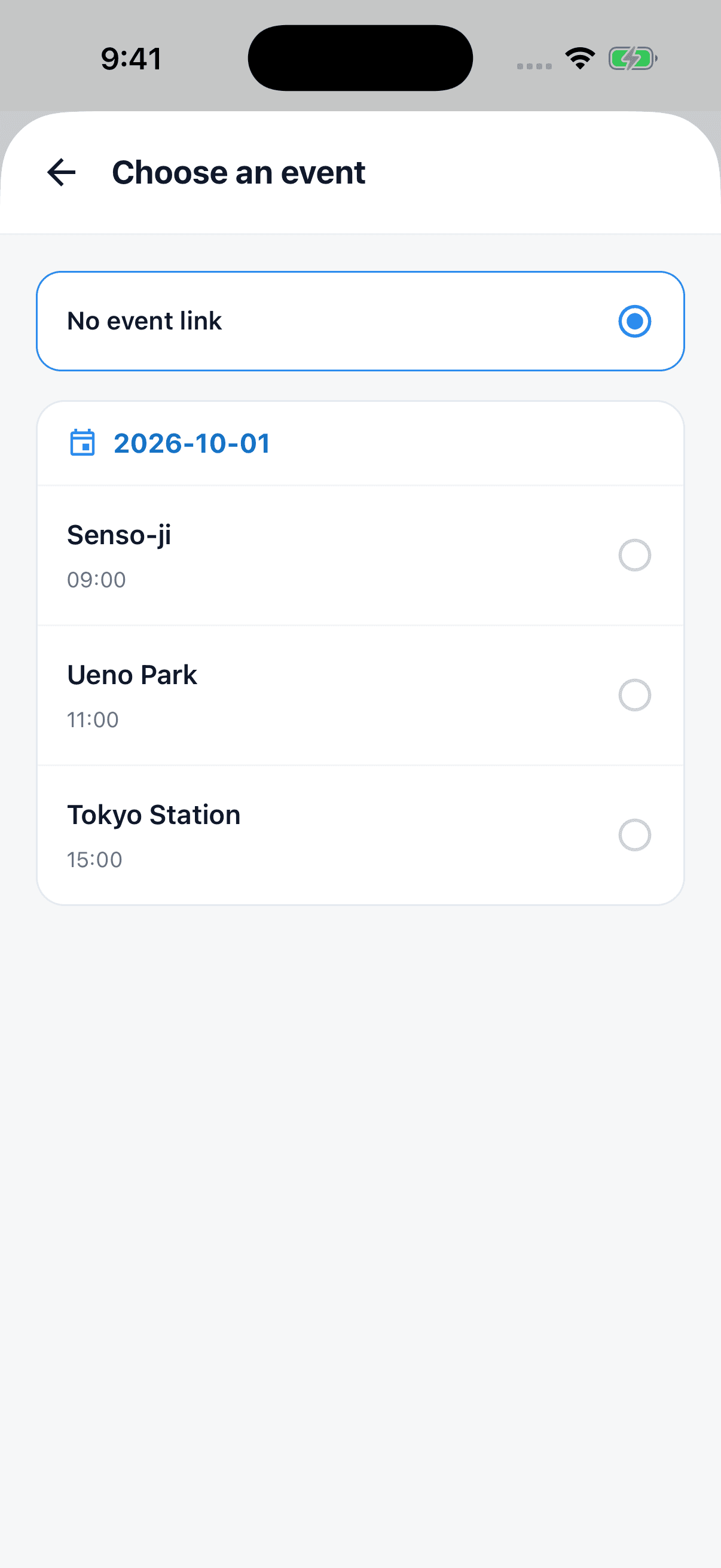
Itinerary linking is included in the 1.12 update. Putting the hotel confirmation beside the check-in item gives you a way to move from the plan to the document. When saving a new reservation document, choose an existing itinerary item by its date and title: the relevant flight for an airline ticket, or check-in for a hotel confirmation.
If you do not need a connection yet, save the document on its own. To link to an activity that is missing, first add that itinerary item, then select it when saving the new document.
| When you need the record | What to keep in the trip |
|---|---|
| Checking a flight at the airport | Ticket file and booking reference |
| Checking into a hotel | Confirmation linked to the check-in item |
| Meeting for a tour | Reservation date and meeting point |
| Reviewing the day's spending | Receipt photo or spending note |
This is useful for the person handling reservations on a family or friends' trip. Signed-in owners and editors can organise the documents and ledger for the same trip.
Start an expense entry with a receipt photo
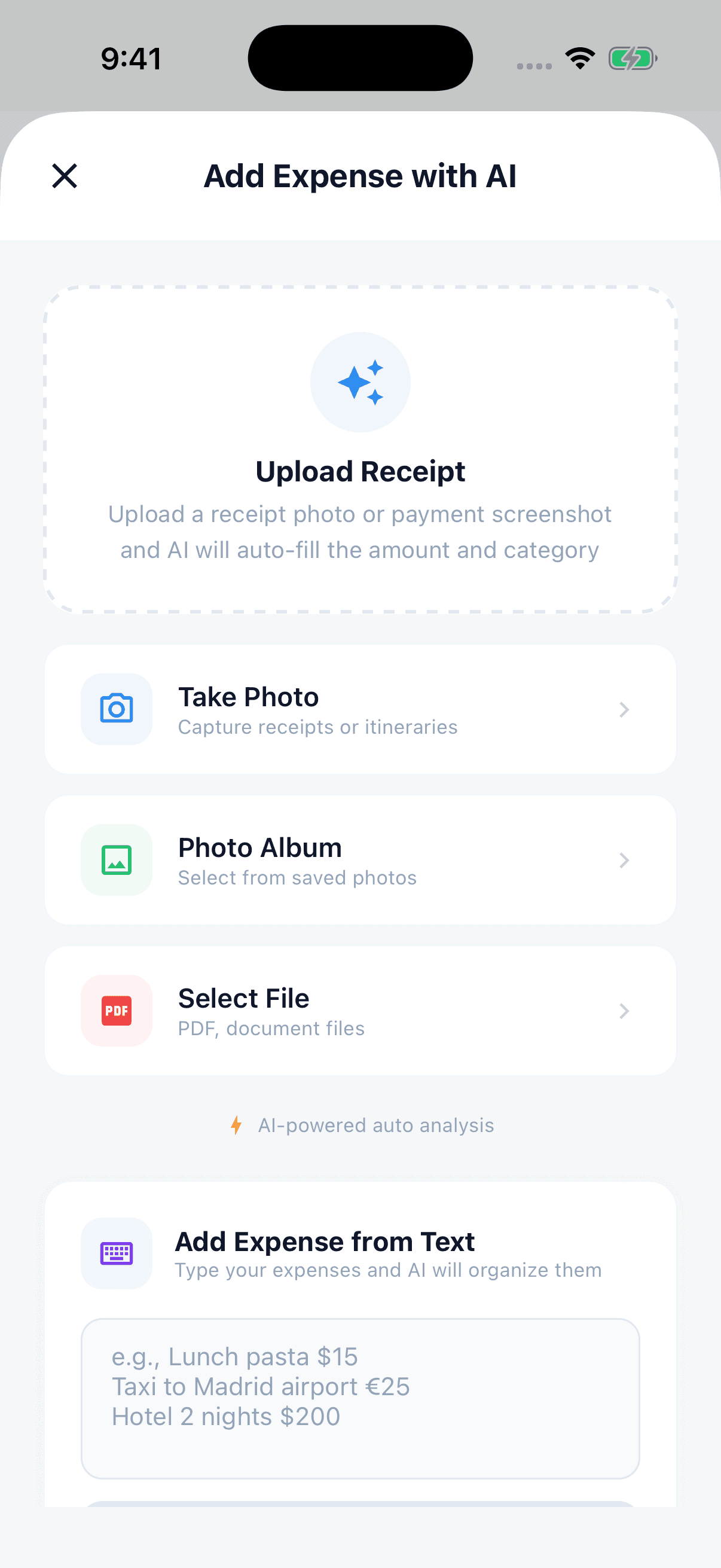
Open AI expense entry in the travel ledger and take a photo or choose an image. Expenses read by AI are added to the ledger. Open the added entries to check their amounts, currencies and categories, and edit anything that needs correcting.
A restaurant receipt can be organised as one expense based on the total, with recognised line items alongside it. Recording receipts when you have a moment during the trip helps you see the day's spending without leaving a pile to sort later.
No receipt? Write a spending note
You can also enter a note such as “Coffee KRW 4,500, taxi KRW 12,000” for AI to organise. Separate purchases made at different shops or on different journeys. Group items from the same shop under its name.
For overseas spending, include both the amount and currency. A KRW conversion is calculated when exchange-rate information is available. Items may be skipped if a rate is unavailable or an amount cannot be read; follow the message and enter the KRW amount manually to complete the record.
A note without a date may be recorded as today's spending. If you are entering an older purchase, include its date and check it in the resulting entry.
Begin with one confirmation for your next trip
AI analysis uses points after sign-in. Check the balance and the starting requirement for the feature; deductions depend on actual usage. Manage reservation documents and the ledger as the trip owner or an editor.
Save one hotel confirmation before departure, then organise one meal receipt during the trip. Keeping both kinds of record with the trip makes them easier to find while preparing and when looking back. If you have not started the plan, begin with creating a travel itinerary with AI.