
An AI travel planning guide from the Tripop team.
To create a travel itinerary with AI, tell Tripop where and when you are going and how you want to travel. Review the daily draft and save it as a trip. Ask questions in AI chat as you prepare, and use AI schedule editing when you decide to change the plan.
Planning a family trip can leave you staring at an empty first day, with several more still to fill. A draft gives you something concrete to work with. Add the places that matter, leave room for breaks and fit the plan around the flights you have already booked.
Create an AI trip on Tripop web
Give your first request some useful details
In the app, choose AI creation from the new-trip screen. Enter the destination and dates, then add who is travelling and what interests you. Descriptions such as “cafés”, “a slower pace with my parents” or “two main activities a day” help define the draft you want to see.
For example:
“A family trip to Osaka from November 6 to 8, 2026. We are staying in Namba and arrive at 2 pm on the first day. My parents are coming, so plan one main place in the morning and one in the afternoon, with café breaks. Our flight home is at 5 pm on the last day.”
If you have not chosen a hotel, begin with what you already know. Separating must-visit places from time you want to leave free also makes the result easier to assess.
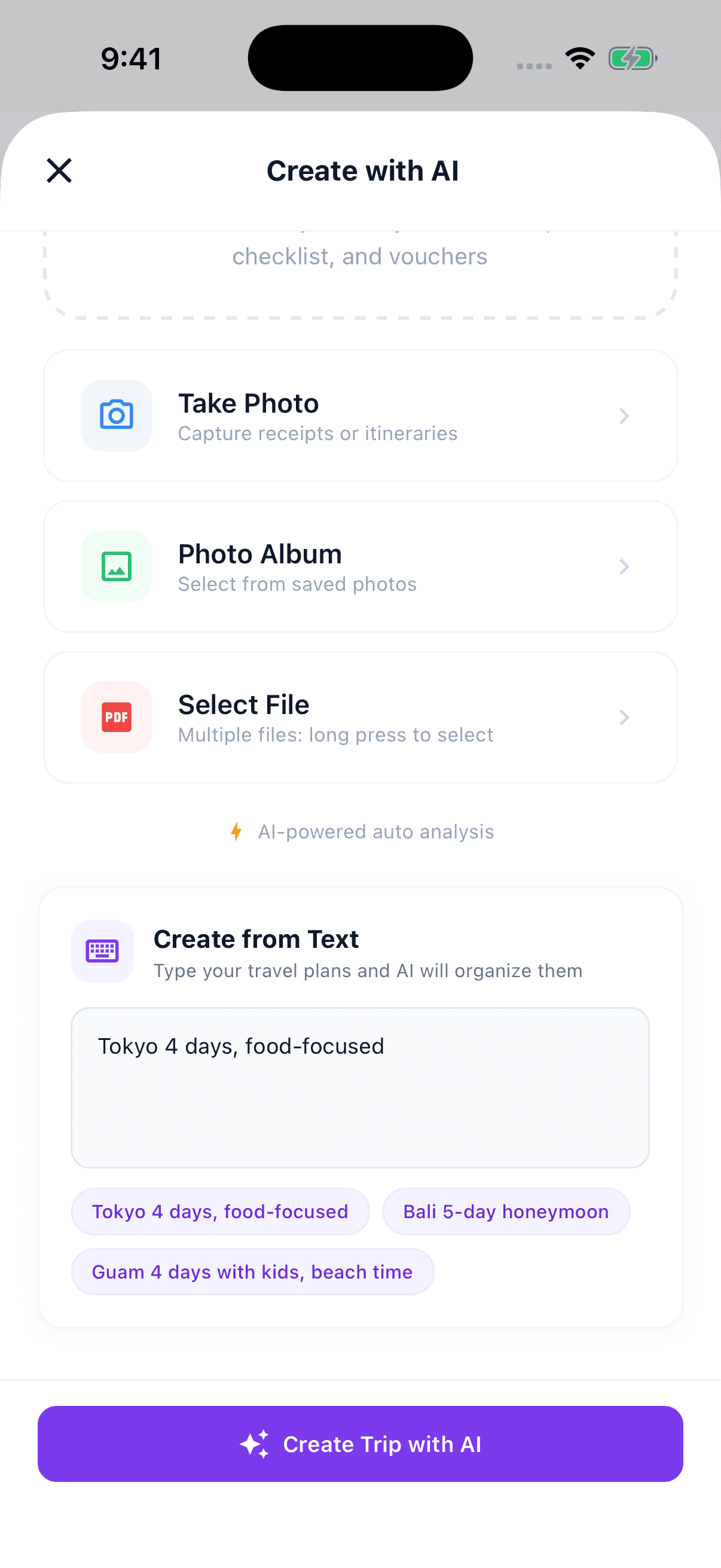
Review the daily draft, then save your trip
Start with the dates, places and times in the generated itinerary. Look at how much is planned after arrival and whether the accommodation area and travel arrangements fit. Confirming the preview creates the saved trip.
For a different overall direction, return to the input step, adjust your request and generate another draft. After saving, refine places and times in the itinerary. Getting fixed details such as flights and booked visits in place first makes the remaining decisions easier.
| Part of the draft | What to check against your trip |
|---|---|
| First and last days | Actual arrival and departure times, with travel time allowed |
| Number of places per day | Your companions' pace and breaks |
| Plans around the hotel | Your accommodation location and next appointment |
| Booked visits | Dates and times on the confirmation |
Check the venue's own information for opening days and available booking times when choosing visits. Adding confirmed details turns the draft into a more specific plan for your trip.
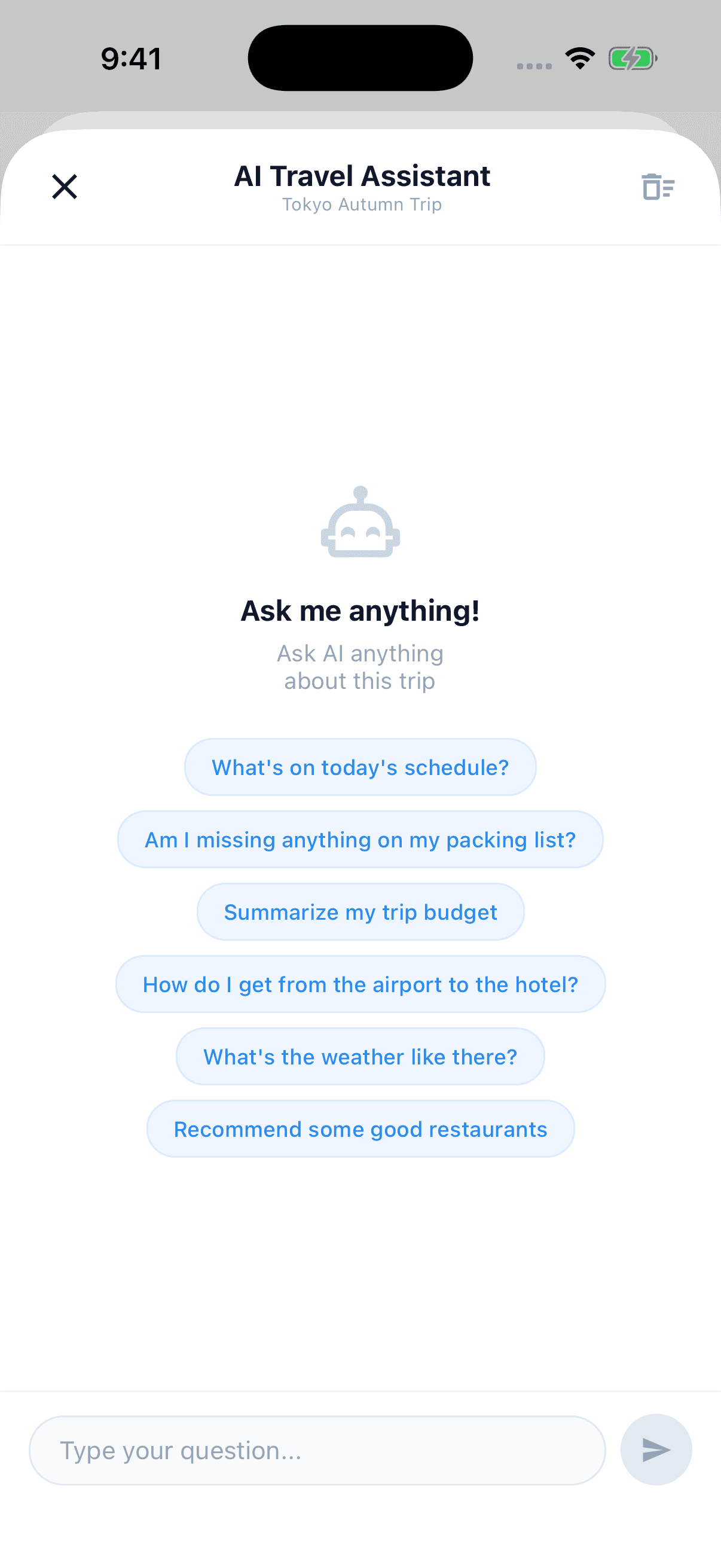
Ask AI chat about the trip you have saved
Try questions such as “What should I check before heading to the hotel on the first day?” or “Summarise the travel legs in tomorrow's itinerary.” AI chat uses the trip's itinerary, reservation information and checklist. You can discuss your plans without starting again with every date and place.
It also helps you think through decisions you have yet to make. Discuss where to leave free time, then decide what belongs in the plan. Questions that arise during preparation stay connected to the trip you are arranging.
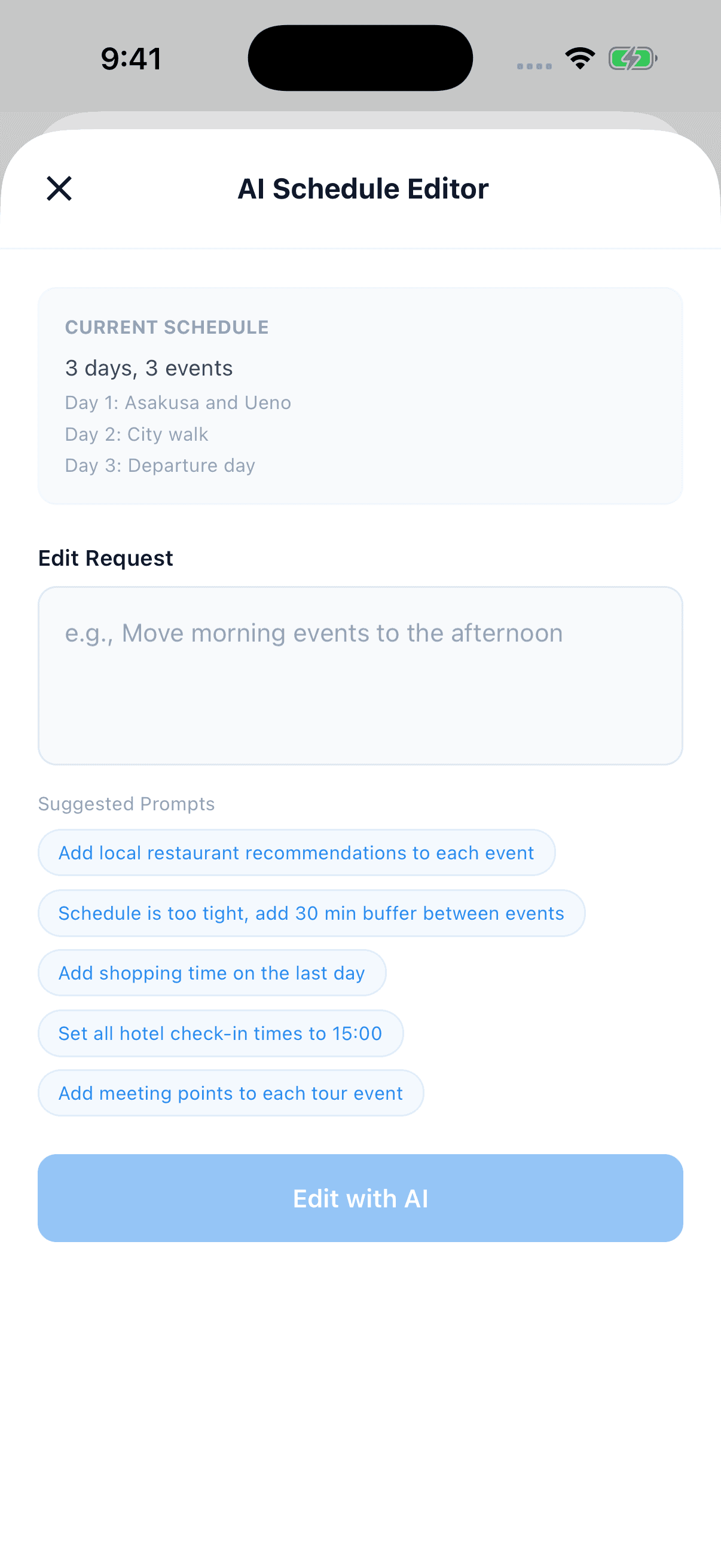
Name the date and change you want to make
When accommodation plans or departure times change, use AI schedule editing. Specify the day and item to change, for example: “Move lunch on the second day to 1 pm.” Include any fixed booking times you want to preserve.
Running the request applies changes to the itinerary and displays a summary. Open the relevant day afterwards to check the places and times. If you change several days, look through any added or moved activities too. This feature is available to signed-in trip owners and editors.
Start with a draft for your next trip
AI features use points after sign-in. The points needed to start differ by feature, and actual deductions depend on usage. Check your balance and bring the trip details together before making a request.
If the plan is still blank, begin with the destination and dates. Save the draft, ask questions within the same trip and adjust the itinerary as plans develop. When your documents are ready, continue with organising bookings and receipts with AI.