
A Tripop 1.12 planning guide from the Tripop team. Use the features below after receiving the 1.12 update from your app store.
If you have plenty of places you want to visit but have not decided which day to go, save them as place candidates first. In Tripop, you can keep restaurants and attractions without a date, then add them to the itinerary when you choose a day. Once the daily plan takes shape, check the locations and order on a map and look up the route to your next stop.
You do not need to put every interesting place into day one as soon as planning starts. Separating the time for collecting places from the time for building a daily plan helps you keep track of both a café a friend suggested and an observation deck that needs a reservation.
Start planning with the Tripop app
Save candidates before assigning a date
Select a trip and open Itinerary → Place candidates. In Tripop picks, browse recommendations for your destination and save a place as a candidate. Use the + button at the top right to add a place you found yourself.
Enter the place name, address and a link you want to revisit, then add a note. Keeping the reason you chose it, such as “an indoor option for a rainy day” or “a café to visit after lunch,” makes decisions easier when you build the itinerary. Recommendations you save and places you add yourself appear together in Saved places.

Turn a saved place into a daily plan
Open a place in Saved places and tap Choose a date. Pick the visiting day to add it to that day's itinerary. Then set the visit time using the place, address and notes you already saved.
For example, put a park and a nearby lunch spot on the same day, and put the observation deck on the day of your evening reservation. Leave an undecided café among the candidates. You keep options for the whole trip while organizing confirmed plans by day.
| Planning stage | What to do in Tripop |
|---|---|
| Find somewhere you want to go | Save its name, address, link and notes as a candidate |
| Decide the visiting day | Choose a date from the candidate details to add it to the itinerary |
| Organize the day | Check visit times and order |
| Prepare for travel between stops | Open Map overview, then directions for a leg |
Check place order and distance on the daily map
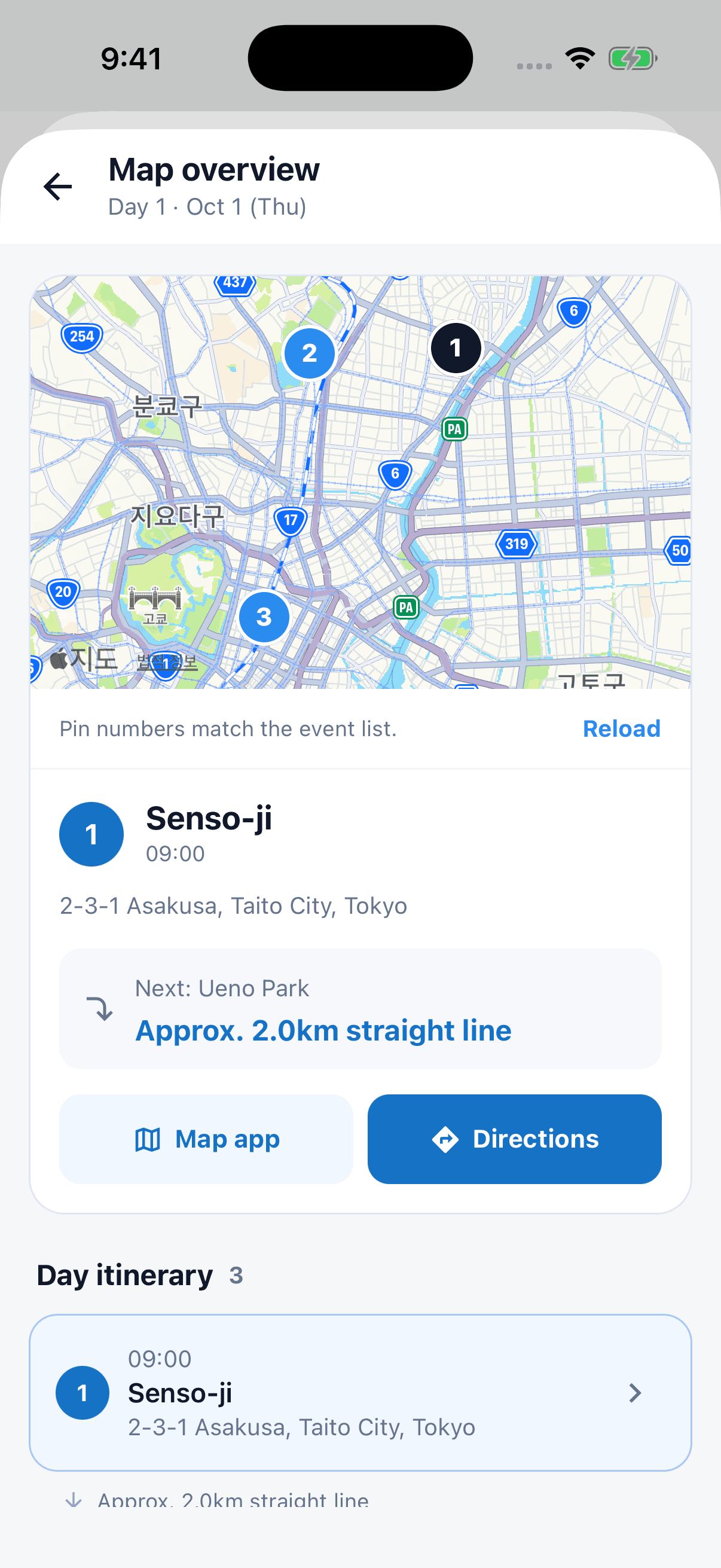
Open a day's itinerary and tap Map overview to see its places on a map and in a list. Places with confirmed coordinates have numbers matching the itinerary order. Select a pin to see the place and time, then check where the next stop is.
The displayed distance is the straight-line distance to the next place. Use it to see whether your morning plans are spread across opposite sides of a city, or whether lunch is close to the afternoon stop. For a place without a precise location, first check its address and location in the itinerary.
Open directions when it is time to travel
Once you have chosen the visit order, open directions to the next stop from the selected place. Check the actual walking, transit or driving route in the connected map app. Save the transport option or meeting point you find in the itinerary notes so it is easy to explain to your companions.
Use the straight-line distance to understand how the day's locations relate to each other, and directions to prepare for the actual journey. If plans change during the trip, edit the places and times for that day and check the map again.
Collect places together and start with day one
A trip's owner and editors can manage its candidates together. Invite friends who are helping to plan with editing permission, and add reasons for the places each person wants to visit. Having those ideas beside the candidates gives you something to refer to when assigning days.
- Save three places you especially want to visit as candidates.
- Choose the ones for day one, add them to that day's itinerary and set the times.
- Check their positions in Map overview, then open directions to the next stop.
Turn a list of places you want to visit into a plan for the day. Prepare your next trip with Tripop